
Quick answer: You can make a Claude explainer video in a normal Claude chat. Claude writes code for every shape, word and sound, shows you a storyboard, and after you type “Approved” it renders a real 1080p MP4 you can download. It works on the free plan too (Sonnet, about 16 minutes for 20 seconds). Pick a style below, copy the prompt, and paste it into claude.ai.
A Claude explainer video needs no Claude Code, no Remotion, no After Effects and no editing software. You type one prompt in a regular chat, approve a storyboard, and download the MP4.
This page gives you a free style library: seven tested looks, each with a ready prompt. Below the library you’ll find how it works, my real timings on Pro and Free, and the mistakes that cost me time.
Free Claude explainer video style library
Pick a style, type your topic, choose the options, and click Copy prompt.
1. Pick a style
I want a 15-second 3D isometric explainer video, 16:9, 1920x1080, 30 fps.
Topic: "How a YouTube video reaches millions: upload, the algorithm tests it, viewers watch, it grows."
Style: clean isometric 3D shapes with soft shadows, a warm cream background, one orange accent color plus dark navy for text, rounded friendly shapes.
One small mascot (a cute round robot with an orange antenna) appears in every scene and always looks exactly the same.
Show the key words of each scene on screen (max 4 words), timed to the action.
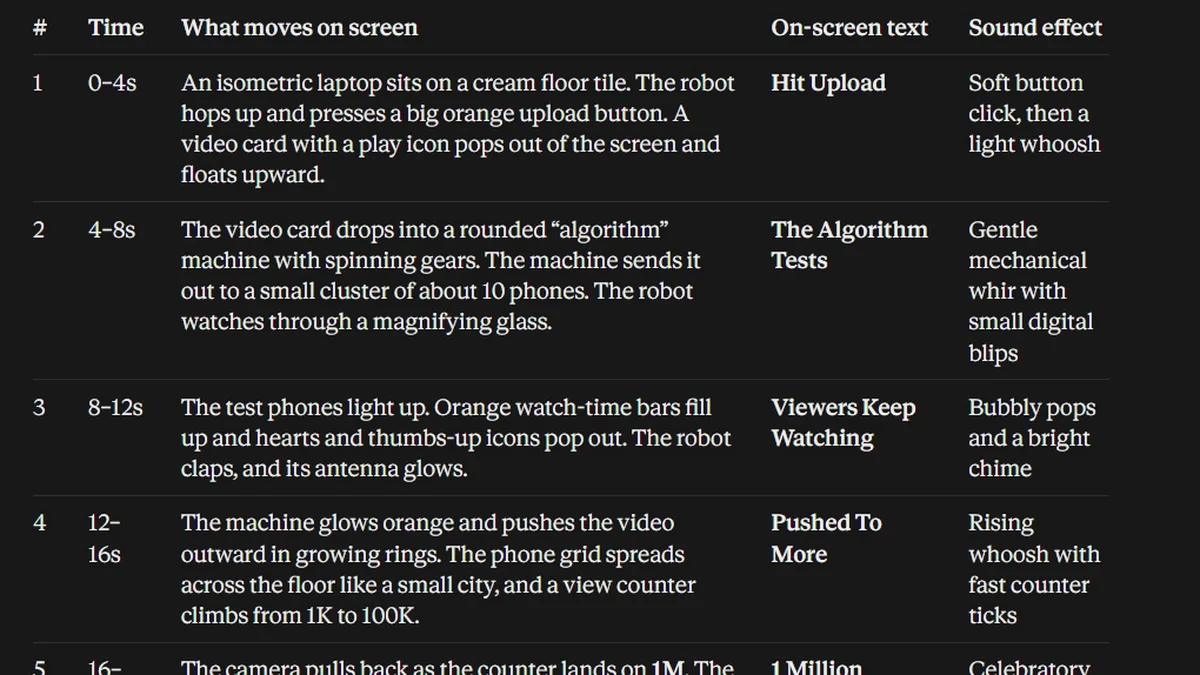
First show me a storyboard: one short row per scene with the time, what moves on screen, the on-screen text and the sound effect. Then wait.
When I write "Approved", build it and render a real MP4 in your own workspace: 1920x1080, 30 fps, H.264, standard color range. Sound made in code: pop, whoosh, click and a soft riser, landing exactly on each movement, plus a light background beat. Final loudness -14 LUFS, true peak below -1 dB. No copyrighted music, no logos, no real brand names. Give me the MP4 to download and tell me how long it took.
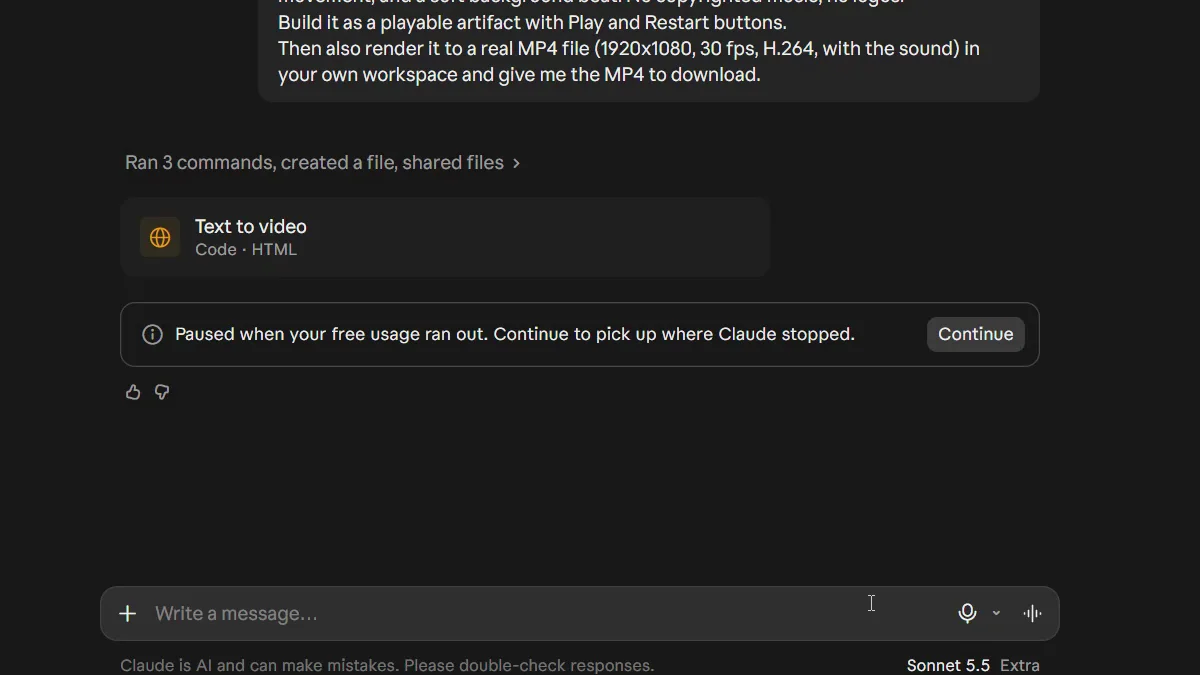
Paste it into a new chat on claude.ai. Free plan: pick Sonnet with Medium effort and keep it 10–15 s. If Claude pauses at your free limit, wait for the reset and press Continue in the same chat: our 15-second test finished after one pause. The MP4 appears in the chat with a download button.
How Claude makes a video without a video model
Claude has no video model. Instead, it writes code that says what happens at each second of the video. It plays that code frame by frame at 30 fps, and its own workspace turns the frames into an MP4 file.
The sound effects are made in code too. That’s why every pop and whoosh lands exactly on a movement: the sound and the picture come from the same timeline, so every Claude explainer video stays in sync.
How to make your first Claude explainer video (step by step)
- Open claude.ai and start a new chat. On Pro, pick Opus 5.5 with Medium effort.
- Paste the prompt you copied from the library.
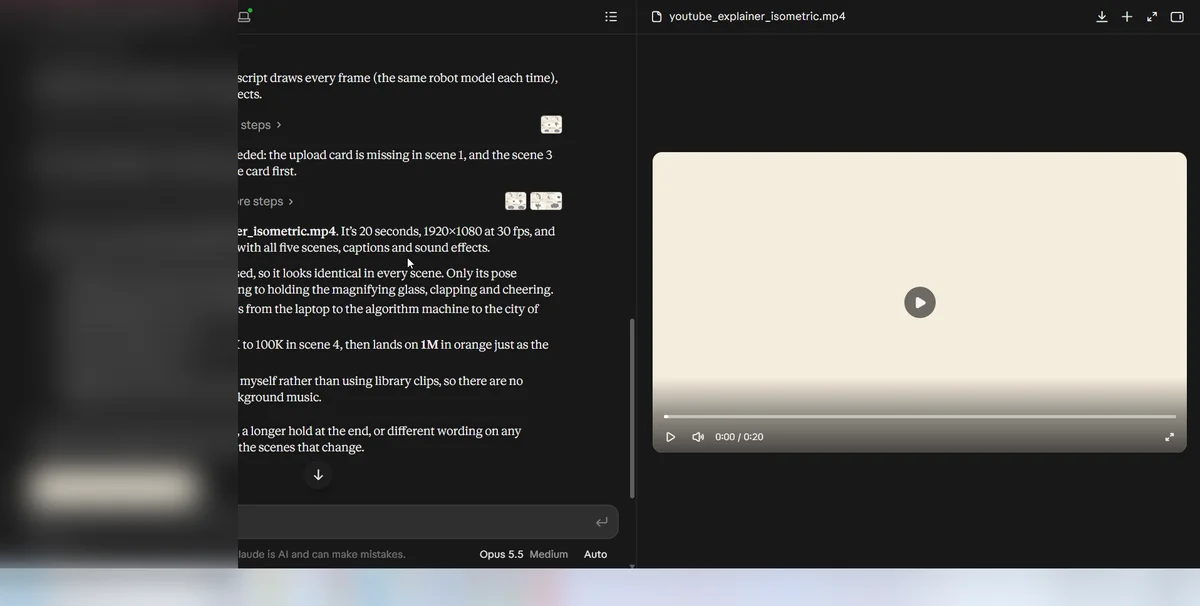
- Claude shows a storyboard with each scene, its time, the on-screen words and the sound. Read it, then type Approved.
- About 7 minutes later the MP4 is in the chat. Click download.
Fix one scene without starting over
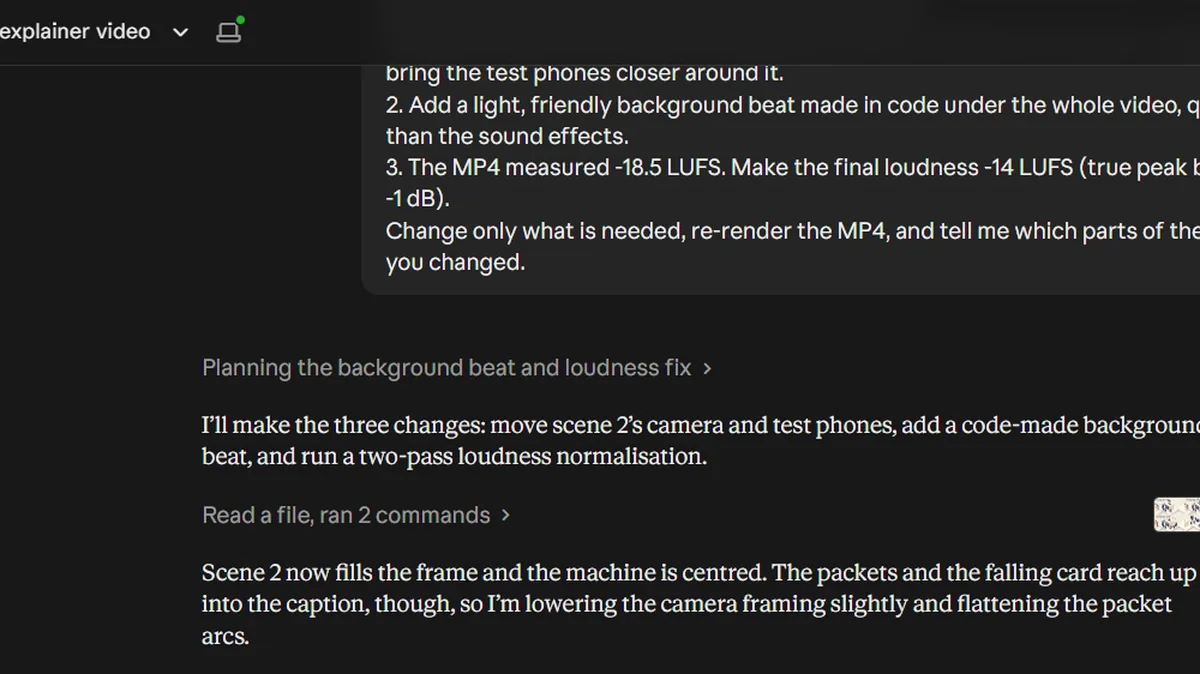
My first video had three problems: scene 2 was empty, there was no music, and it was too quiet (−18.5 LUFS).
One message in the same chat fixed all three. Claude changed only that scene, added the beat and raised the loudness, and the new MP4 was ready in about 4 minutes.
The 7 styles (tested results)
Every Claude explainer video below was made with the matching prompt from the library.
3D Isometric

Best for: processes, tech, how things grow.
Kinetic Text

Best for: Shorts, tips, lists, hooks.
Voice Explainer
Best for: narrated explainers, faceless channels. The captions are synced to the voice, word by word.
Science Diagram
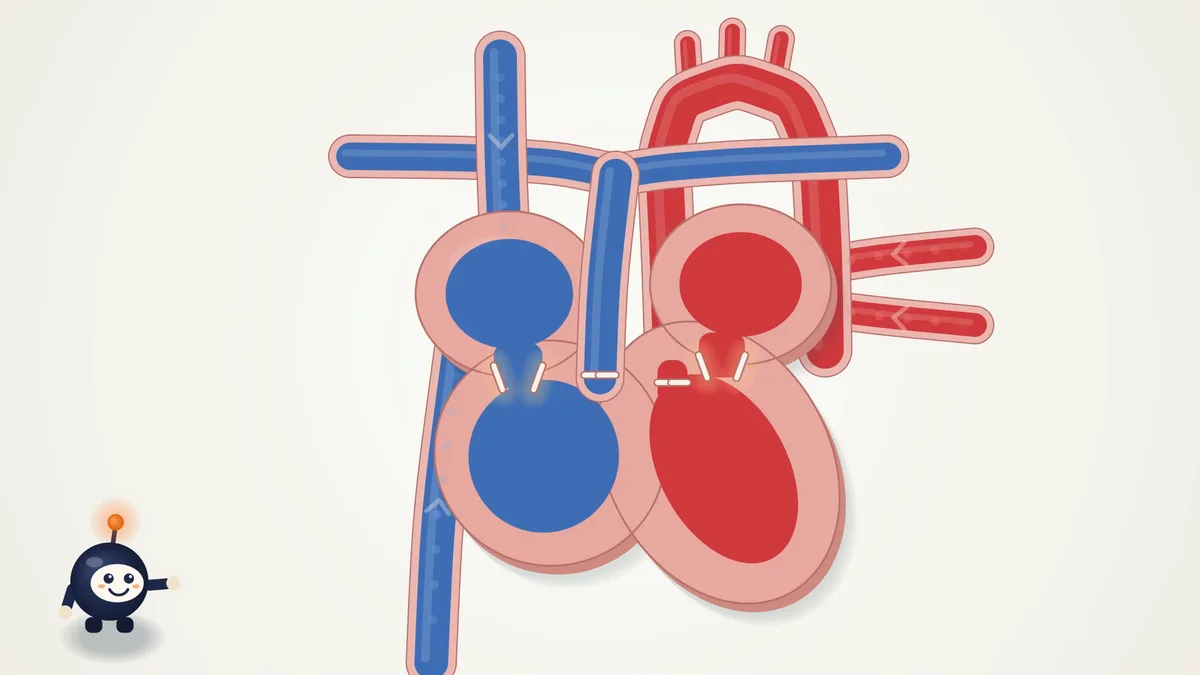
Best for: biology, medicine, school topics. Claude added accuracy notes, such as which valves close on each heartbeat sound. It’s a simplified, textbook-style diagram.
Generative Particles

Best for: comparisons, AI and tech, premium intros.
Liquid Glass
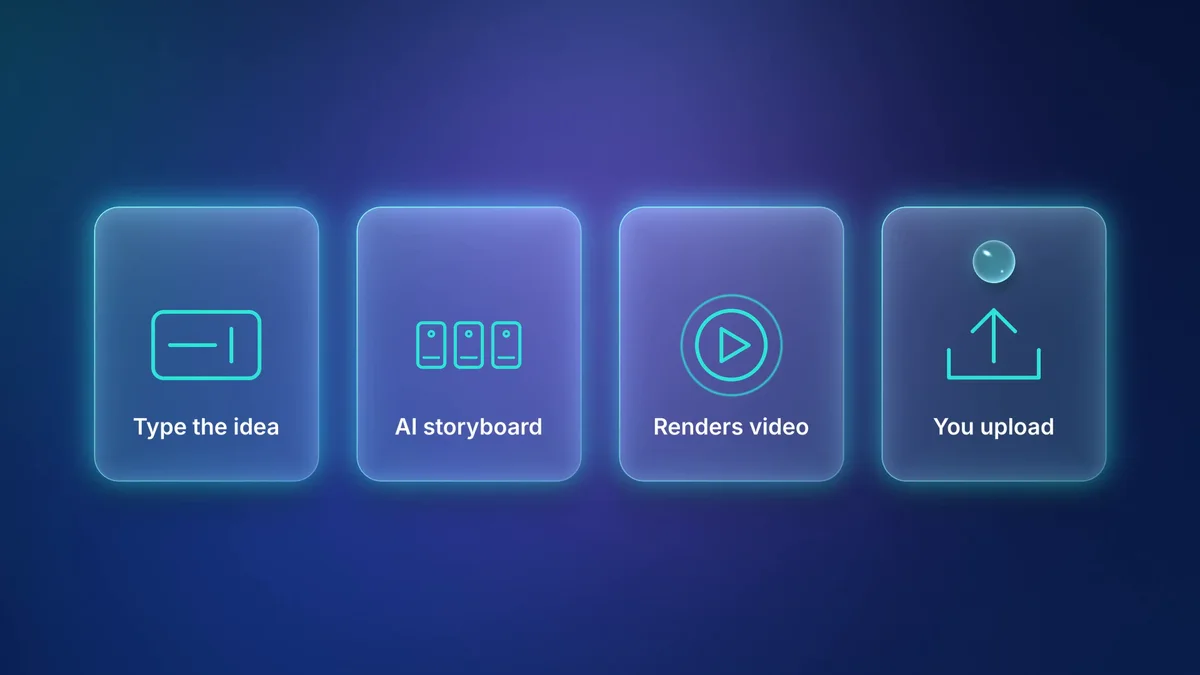
Best for: step-by-step flows, apps, workflows.
Glass Tilt Cards
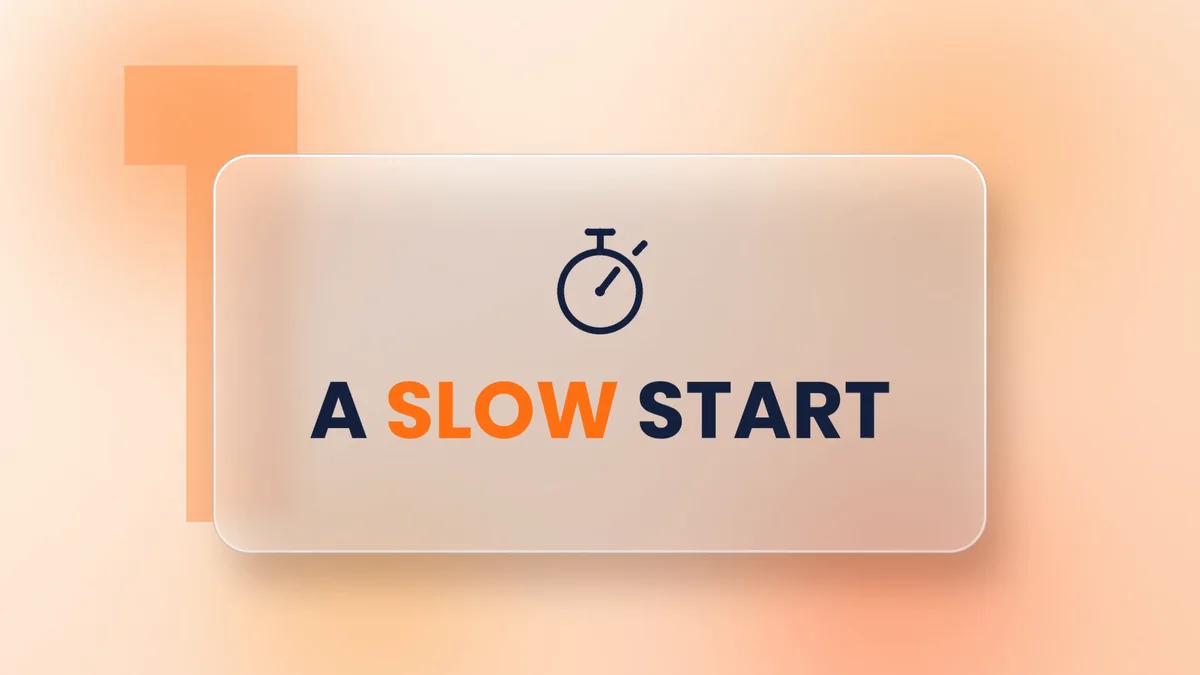
Best for: tips, mistakes, top-3 lists.
Opus vs Sonnet: same prompt, real results
| Opus 5.5 (Pro) | Sonnet 5.5 (Free) | |
|---|---|---|
| Time | 4 min 48 s | about 16 min |
| Specs | 20 s, 1080p30, −14 LUFS | 20 s, 1080p30, −14.1 LUFS |
| Notes | — | rendered 3 times and fixed its own mistakes |
Both videos look great. Sonnet only needs more time to finish the same Claude explainer video.
Does it work on the free plan?
Yes. A Claude explainer video works on the free plan: use Sonnet 5.5 with Medium effort and keep the video to 10–15 seconds.
If Claude pauses with a message that your free usage ran out, don’t start a new chat. Wait for the reset and press Continue in the same chat. In my test, the MP4 arrived about 3 minutes after Continue. Anthropic explains how resets work in its usage limits article.
Opus isn’t available on the free plan, as the Claude plans page shows.
Add a free voiceover (Google AI Studio)
- Open Google AI Studio.
- Choose speech generation.
- Pick a voice.
- Paste your script.
- Download the WAV file.
Back in the library, tick the voiceover option and copy the prompt. Attach the WAV in Claude with it. Claude transcribes every word and syncs the scenes, captions and sounds to your voice. My 35-second voice video took about 9 minutes.
3 mistakes that cost me time
These three slowed down my first Claude explainer video.
- A vague topic. “Make this for my channel” made Claude guess, and it added gaming, which my channel doesn’t cover. Say exactly what you want.
- Starting a new chat at the limit. Press Continue in the same chat instead.
- Not asking for loudness. Put “-14 LUFS” in the prompt. The library prompts already include it.
Claude Motion vs this method
Claude Motion (beta) is only on the Team and Enterprise plans, according to the Claude pricing page. The method on this page works on Free, Pro and Max in a normal chat, so you can make a Claude explainer video without a Team plan.
More AI video tutorials
- Claude video editing tutorial
- Google Flow Omni Flash 1.2 tutorial
- Google Flow AI avatar video
- Consistent AI character for free
FAQ
Yes. In a normal chat, Claude writes animation code and renders a real MP4 you can download. It has no video model, so it builds the video from shapes, text and sound in code.
Yes, it works on the free plan with Sonnet. It is slower and you may hit the usage limit; wait and press Continue in the same chat.
No. A regular chat on claude.ai is enough.
About 5 to 7 minutes with Opus on Pro for a 15–20 second video, and about 16 minutes with Sonnet on the free plan.
Yes. Make a free voiceover in Google AI Studio, attach the WAV, and Claude syncs the video to every word.
Yes. Choose 9:16 in the library and the prompt sets 1080×1920 and keeps the text inside the safe area.
Yes. Ask for the change in the same chat. Claude edits only that part and renders the MP4 again.
Tell me in the YouTube comments which style I should add next.

Awill Misra (Known as Awill Guru) holds a B.Tech in Electronics & Communication Engineering and an M.Tech in VLSI design, along with NIELIT O and A Level certifications. He also has an M.A. in Sociology and a B.Ed. He has been writing troubleshooting guides for Android phones, TVs, apps and gadgets on Gossipfunda since 2018, and teaches mathematics.