
Omni Flash 1.2 (officially Gemini Omni 1.2 Flash) is the video model inside Google Flow that can make a clip from a sentence, animate a photo, keep the same face across shots, and change a finished video when you simply type what should be different. This tutorial walks through every step I used on 14 November 2026, with the exact prompts, the real credit prices I saw on screen, and the mistakes that cost me credits (plus how I fixed each one).
Quick answer: Open flow.google.com, start a new project, and talk to the Flow Agent on the right. Before your first prompt, open the sliders icon and set video generation to x1 and “Confirm before generating” to Always, so you see the price before every clip. Write prompts in five parts (subject, action, camera, light, sound), keep clips at 10 seconds (30 credits at default quality), draft long shots at 360p, edit one change at a time, and extend last.
What Omni Flash 1.2 (Gemini Omni 1.2 Flash) can do
Google released Gemini Omni 1.2 Flash on 5 November 2026. According to the official Google announcement, it adds native clips of up to 15 seconds, multi-turn conversational editing and stronger reference following than version 1.1. In Flow it shows up as Omni 1.2 Flash in the Agent settings.
In practice that gives you six jobs in one place:
- Text to video: a clip from a written prompt, with sound.
- Image to video: a photo becomes the first frame of a moving shot.
- Same face every time: reference images keep a character consistent.
- Edit by typing: change the time of day, an animal or an object in a finished clip.
- Video to video: restyle a clip (for example 2D or 3D animation).
- Extend and Add clip: make a shot longer, or join clips into a scene.

Before you start
- A Google account and a desktop browser. Flow’s own interface is used here; it may look different in later updates.
- Optional: ChatGPT (or any image tool) to make character portraits.
- Optional: a video editor such as Filmora or CapCut if you want a 1080p final made of several clips.
Everything below was done on a Google AI Pro account. Credits and features differ by plan (Google’s Flow help page lists Extend for paid plans), so check what your own account shows before you plan a project.
Step 1: Open Flow and fix the one setting that doubles your cost
- Go to flow.google.com and click New project.
- The panel on the right is the Flow Agent. You don’t pick tools from menus; you type what you want and the agent prepares it.
- Click the sliders icon under the chat box to open Agent settings.
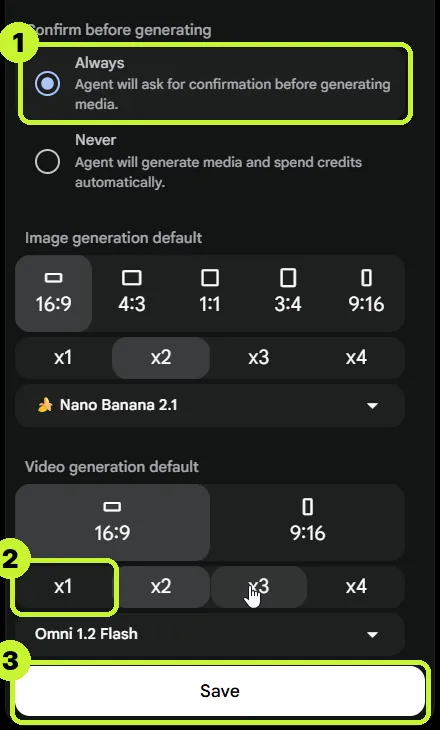
- Under Video generation default, check the number. Mine was set to x2, which means every prompt makes two videos and costs double.
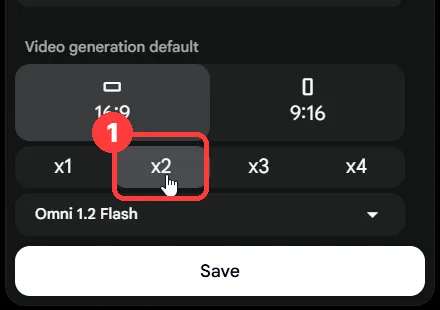
- Set it to x1, keep 16:9 (or 9:16 for Shorts) and leave the model on Omni 1.2 Flash.
- Set Confirm before generating to Always. The agent then shows a price card and waits for you.
- Click Save.
Check this setting again later. On my account it went back to x2 in a later session, and the agent offered two videos for 60 credits again.
Step 2: Text to video with a five-part prompt
A short prompt such as “a fox in the snow” works, but you get far more control when the prompt covers five things: subject, action, camera, light and sound. This is the exact prompt I sent to the agent:
A red fox walks slowly toward the camera through a snowy pine forest at sunrise.
Action: at 3 seconds it stops, looks straight into the lens, and shakes the snow off its fur. Then it keeps walking.
Camera: low angle at the fox's eye level, slow push-in, 85mm lens, soft background blur.
Light: golden sunrise from behind the trees, glowing breath in the cold air, light snowfall.
Sound: soft paws crunching on snow, a light wind, distant birds. No music, no voices.
Photo-realistic, natural fur detail, film grain. No text, no subtitles.
After you send it, the agent answers with a price card. Read it before you click anything: it tells you how many videos it will make and what they cost.
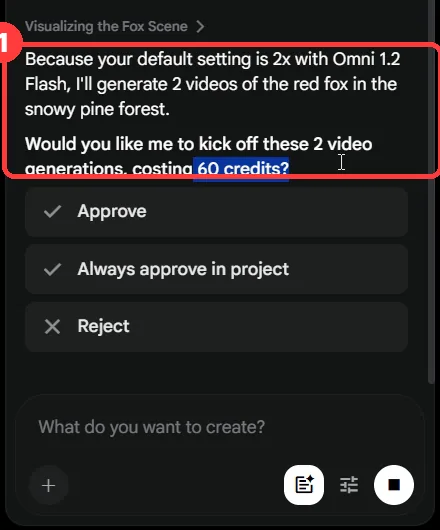
With x1, a 10-second clip costs 30 credits. Click Approve, and the clip appears in the grid and in the chat. Both takes followed the prompt: the fox stopped, looked at the lens and shook off the snow, with matching sound.
Step 3: The clip page, versions and 1080p download
Click any clip to open its page. You get a player, a timeline (drag the clip edge to trim) and a box that says Describe how to edit this video…
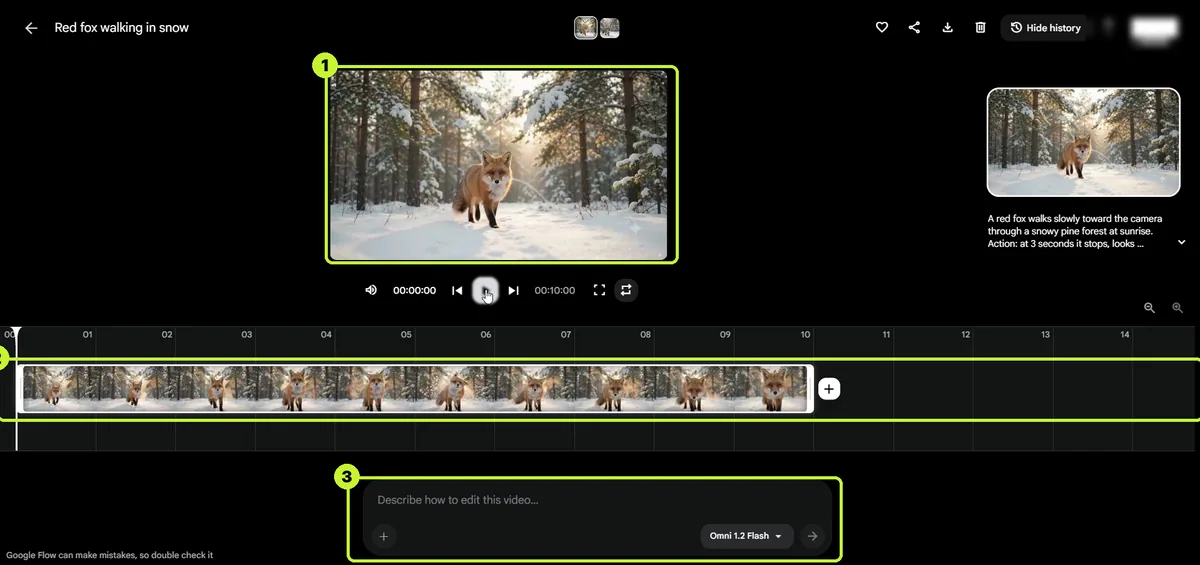
On the right is the history panel. Every version of the clip is kept there with the prompt that made it, which matters once you start editing.
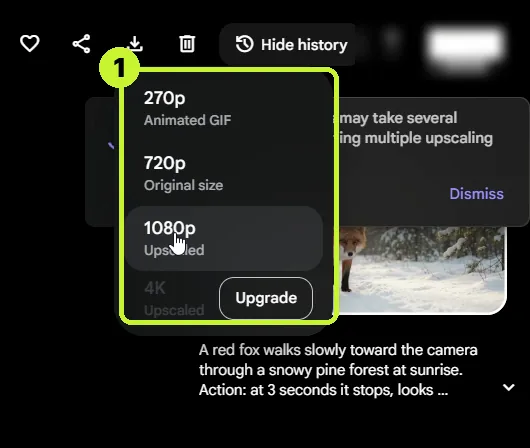
To download, click the download icon. The menu offered 270p Animated GIF, 720p Original size, 1080p Upscaled and 4K Upscaled (marked Upgrade on my plan). The 1080p option took a few minutes to process and showed no extra price for 3-second and 10-second clips.
Step 4: Image to video (a short request is enough)
- In the agent chat, click + (Add ingredients), choose your image and click Add to prompt.
- Describe the motion. You don’t need a long prompt: the agent expands a short request into a full one.
This is what I typed, lightly corrected for typos:
Now image to video. Animate the image: show her eyes and hair, take a 180-degree camera rotation. Everything must look real.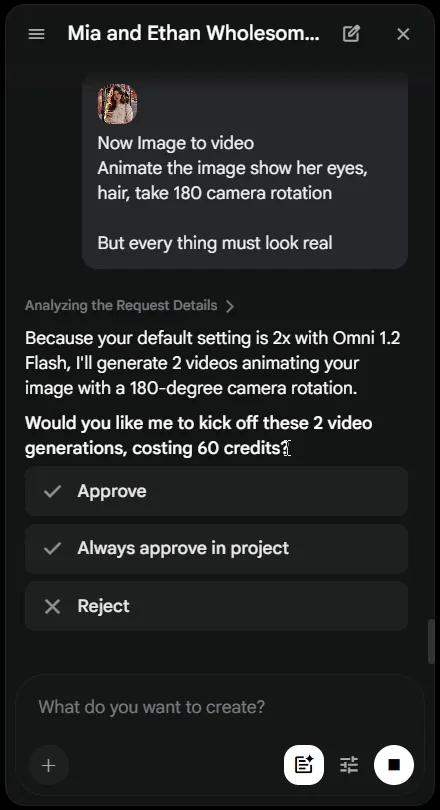
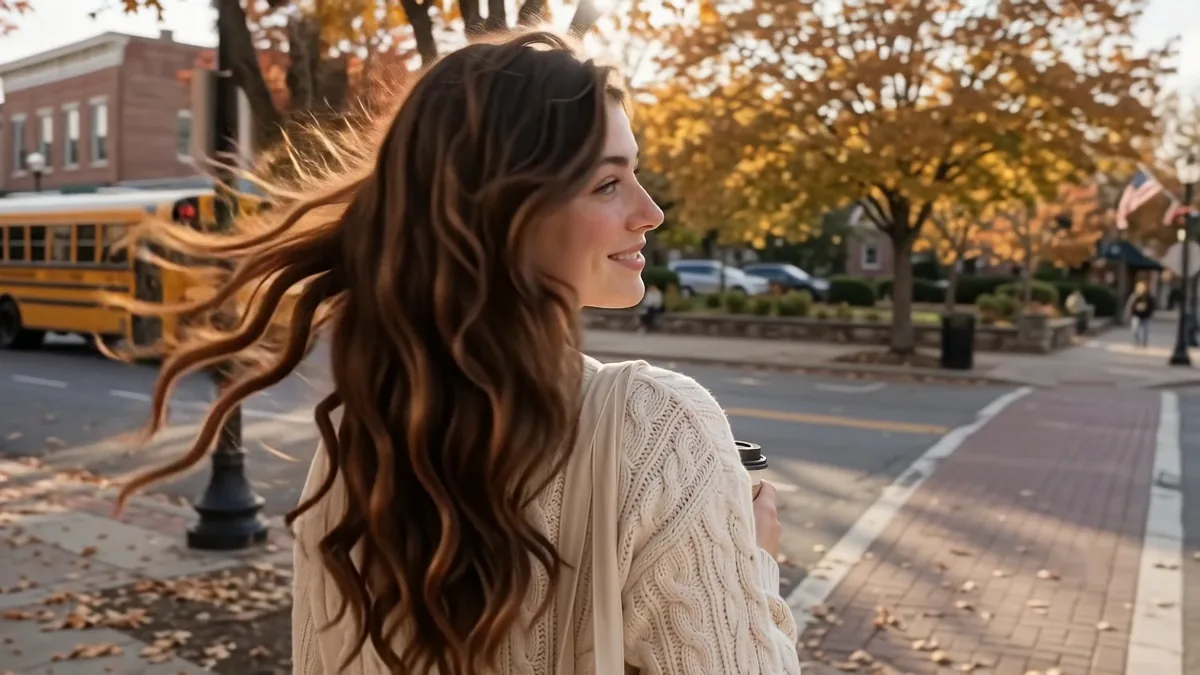
The result was the strongest clip of the session: the camera moves in a smooth half circle around her, the face stays the same from every angle, the hair moves and leaves fall.
Step 5: Keep the same face in every video
I made two characters in ChatGPT, Mia and Ethan, and used them as references. For the full method, see my guide to making realistic AI characters with free tools. These are the portrait prompts (16:9, largest size):
Ultra-realistic candid photograph, 16:9. An original, fictional 22-year-old American woman, not resembling any celebrity or real person.
Face: natural oval face, light olive skin with real texture (visible pores, a few faint freckles across the nose), warm hazel eyes, softly arched brows, natural lips with a relaxed, friendly half-smile, minimal makeup.
Hair: shoulder-length wavy chestnut-brown hair with soft sun-lit highlights.
Outfit: cropped cream cable-knit sweater over a white tee, high-waist light-wash straight jeans, small gold hoop earrings, a thin gold necklace.
Pose: standing on a sidewalk, looking straight into the camera, holding a takeaway coffee cup.
Background: an American small-town main street in autumn, red-brick storefronts, orange and gold maple trees, softly blurred.
Camera: medium shot from the waist up, eye level, 85mm lens at f/1.8, sharp focus on her eyes.
Light: late-afternoon golden-hour sun from the side. True-to-life colors, subtle film grain. No text, no logos, no watermark.
Ultra-realistic candid photograph, 16:9. An original, fictional 22-year-old American man, not resembling any celebrity or real person.
Face: friendly face, fair skin with a light natural tan and real texture, slight stubble, a tiny scar on his left eyebrow, blue-grey eyes, an easy confident smile.
Hair: short dark-blonde hair, textured and slightly messy on top.
Outfit: an olive-green bomber jacket open over a heather-grey crew-neck tee, dark slim-fit jeans, a black leather watch.
Pose: leaning casually against a railing, looking straight into the camera.
Background: a sunny American college campus with red-brick buildings, a green lawn and a tall oak tree, softly blurred.
Camera: medium shot from the waist up, eye level, 85mm lens at f/1.8. True-to-life colors, subtle film grain. No text, no logos, no watermark.Flow gives you two ways to use references:
Way 1: Agent instructions (works for every prompt). Open the sliders icon, then Agent instructions, then + Add instruction. Each instruction card has a title, a + Reference slot for an image and a text box. I made one card per character. After that, the agent used both references in later prompts without me attaching them again.
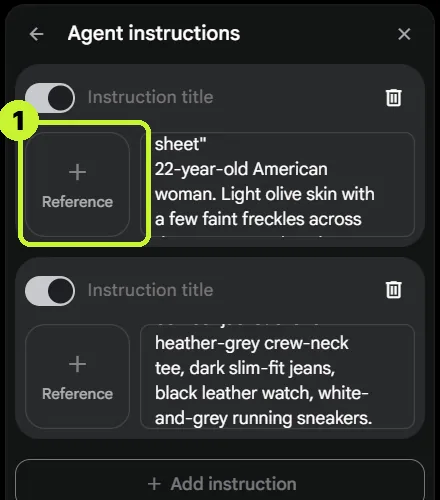
This is the instruction text I used (one card per character, with the matching reference image):
CHARACTER RULES FOR THIS PROJECT

Two recurring characters, always identical to their reference images in every video: same face, hair, eye colour, height and outfit.

MIA — reference image "Mia sheet"
22-year-old American college student. Light olive skin, a few faint freckles, warm hazel eyes, shoulder-length wavy chestnut-brown hair.
Outfit: cream cable-knit sweater over a white tee, light-wash jeans, small gold hoop earrings, white sneakers.

ETHAN — reference image "Ethan sheet"
22-year-old American college student, Mia's best friend. Light tan skin, slight stubble, blue-grey eyes, short dark-blonde hair, taller than Mia.
Outfit: olive-green bomber jacket over a grey tee, dark jeans, black watch, white-and-grey sneakers.

Style: photo-realistic, natural skin, wholesome everyday moments. Default video: 16:9, x1, ask before generating.
Way 2: @-chips in the prompt (this prompt only). Click +, pick the image and Add to prompt. The image is placed inside your text as a chip, so you can say exactly which picture is which person.
Step 6: Two characters, dialogue, and a false policy alarm
My first hug prompt was a harmless scene of two friends, but Flow showed this message anyway:

I rewrote it in simpler words as a friendly reunion of two best friends, and this version went straight through (8 seconds, 24 credits):
Use the MIA and ETHAN reference images from the project instructions. Keep their faces, hair and outfits exactly the same.

One 8-second video, 16:9, photo-realistic, a wholesome reunion of two best friends.
Location: a sunny American college campus in autumn, red-brick buildings, a green lawn, golden leaves on the path, students far in the background.

0-3s: MIA walks along the path holding a coffee cup and spots ETHAN coming toward her. Both break into big happy smiles.
3-6s: they walk up to each other and share a quick friendly hug, patting each other on the back.
6-8s: they step back, laughing, and start walking side by side, chatting.

Camera: medium-wide shot at eye level, slow push-in, 50mm lens.
Light: warm golden-hour sunlight.
SOUND: light wind, rustling leaves, footsteps, MIA says "Ethan! You're back!", both laugh. No music.
No subtitles, no text.
Emotion and dialogue work too. An airport reunion with tears and two spoken lines kept both faces, even in crying close-ups:
Use the MIA and ETHAN reference images from the project instructions. Keep their faces, hair and outfits exactly the same.

One 10-second video, 16:9, photo-realistic, cinematic. An emotional reunion of a young couple who love each other and have not seen each other for two years.
Location: the arrivals hall of a big American airport in the evening, glass walls, warm lights, travelers walking far in the background, no readable signs or logos.

0-3s: MIA waits near the arrival gate, holding a small handmade sign against her chest, scanning the crowd nervously. ETHAN walks out through the gate pulling a carry-on suitcase and stops when he sees her.
3-5s: close-up on MIA: her eyes fill with tears, she covers her mouth with one hand, then smiles while crying. ETHAN lets go of the suitcase handle, his eyes wet, smiling.
5-8s: she runs to him and they share one long, warm hug; her eyes close and a tear rolls down her cheek.
8-10s: they lean back just enough to look at each other, both laughing and crying.
MIA (softly, voice shaking): "You're really here."
ETHAN (warm, quiet): "I told you I'd come home."

Only one person speaks at a time; lips match the words exactly.
MIA'S VOICE: young American woman, soft and emotional.
ETHAN'S VOICE: young American man, warm, low and gentle.
Camera: starts as a wide shot across the hall, slow push-in to a close two-shot during the hug, 50mm lens, shallow depth of field.
Light: warm golden indoor light, soft glow from the windows.
SOUND: soft airport ambience, a distant boarding announcement, suitcase wheels, her quiet sob turning into a laugh. No music.
No subtitles, no captions, no text on the sign.
One honest miss: I asked for no text on the sign, and Omni wrote “Mia” on it. If a sign or paper is in the shot, say exactly what it should read, or leave it out.
Step 7: Physics that Omni handles well
Across my tests, Omni was strong with liquids, steam, hair, cloth and light, and weaker with things that hit, break or crash, and with counting small objects.
My first pancake prompt got the same message, even though it was only food: a clear false alarm. I can’t confirm what triggered it, because Flow doesn’t say.

What worked: I opened a new chat (pencil icon at the top of the agent panel), made sure no image was attached, and switched off the character instruction cards, because my saved character (Mia) was leaking into new prompts from the old chat. Then I sent the prompt again in plain words.
One 10-second video, 16:9, photo-realistic, slow motion. A breakfast food commercial shot.
A stack of five golden American pancakes on a white plate on a wooden kitchen table, with a pat of butter on top.

0-3s: the butter softens and melts into a golden pool on the top pancake.
3-8s: maple syrup flows slowly from a small glass jug onto the stack, spreads across the top and runs down the sides in slow rivers.
8-10s: three blueberries fall onto the top and roll gently into the syrup.

Light steam rises from the warm pancakes.
Camera: close-up at plate height, slow circular move to the right, 100mm macro lens, shallow depth of field.
Light: warm morning sunlight from a window, the syrup glowing amber.
SOUND: soft butter sizzle, the syrup flowing, a quiet morning kitchen. No music.
No text, no logos.
It generated on the first try. The only miss was the count: four blueberries instead of three. If a number matters, write “exactly three” and “nothing else appears”.
Step 8: Edit by typing (the biggest change in 1.2)
This is the feature that sets 1.2 apart. Google’s Flow help page on editing says you can refine a clip with follow-up prompts for up to three conversational turns, that editing doesn’t delete the original, and that edits cost the same credits per second as new generations.
Way A: on the clip page. Open the clip, type the change in Describe how to edit this video… and send it.

The rule that worked every time: one change per turn, plus “keep everything else exactly the same”.
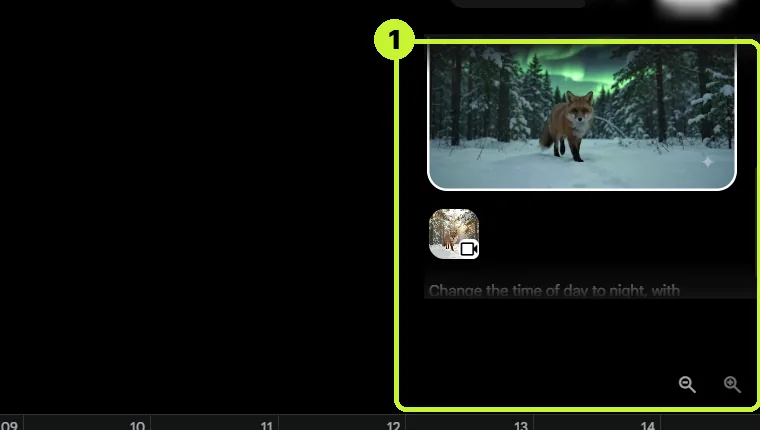
Change the time of day to night, with green northern lights glowing in the sky above the trees.
Keep everything else exactly the same: the same fox, the same walk, the same snow shake, the same camera move, the same timing and the same sound.
Change the red fox into a pure white arctic fox.
Keep everything else exactly the same: the night sky, the northern lights, the walk, the snow shake, the camera move and the timing.Both turns kept the fox’s walk, the snow shake, the camera move and the timing.
Way B: through the agent chat. Click +, open the Videos tab, pick the clip, click Add to prompt and type the edit. The price card showed 1 video for 30 credits for a 10-second clip.
Edit this video: replace the coffee cup in her hand with a small bouquet of yellow sunflowers.
Keep everything else exactly the same: her face, hair, sweater, the camera rotation, the street and the timing.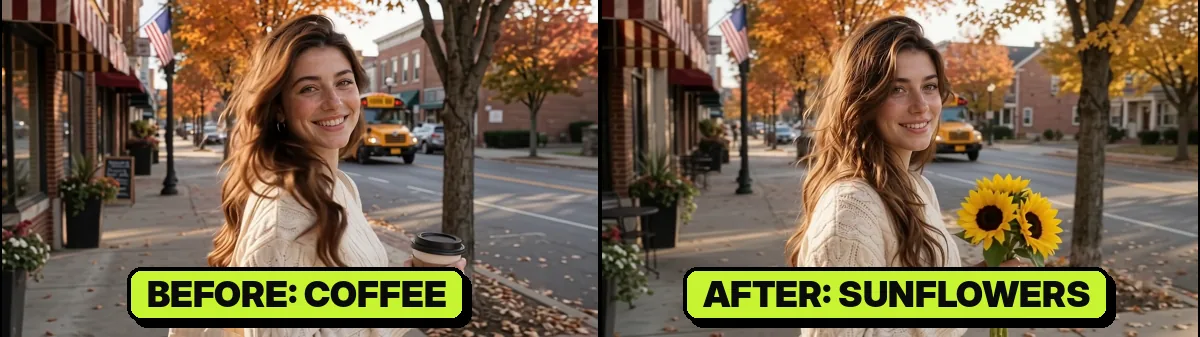
Two things to know:
- Your original isn’t gone. After an edit, the grid card shows only the newest version (with a stack icon). Open the clip and use the history panel on the right to play, save or download any earlier version.
- Switching to vertical 9:16 by edit didn’t work for me, twice. For Shorts, set the video default to 9:16 in Agent settings before you generate, or crop in your editor.
Step 9: Video to video (2D and 3D styles)
Add the clip to the prompt with + and ask for a new style. Keep the “everything else the same” list so the motion and timing match the original.
Edit this video: change the whole video into a hand-painted 2D animated film style, with soft watercolor backgrounds, clean ink outlines and warm autumn colors.
Keep everything else exactly the same: the same girl, her face shape, hair, cream sweater and coffee cup, the same 180-degree camera rotation, the same street, the falling leaves and the same timing.
Edit this video: change the whole video into a polished 3D animated movie style, with soft rounded features, big expressive eyes, smooth stylized hair and glowing warm lighting.
Keep everything else exactly the same: the same girl, her outfit and coffee cup, the same 180-degree camera rotation, the same street, the falling leaves and the same timing.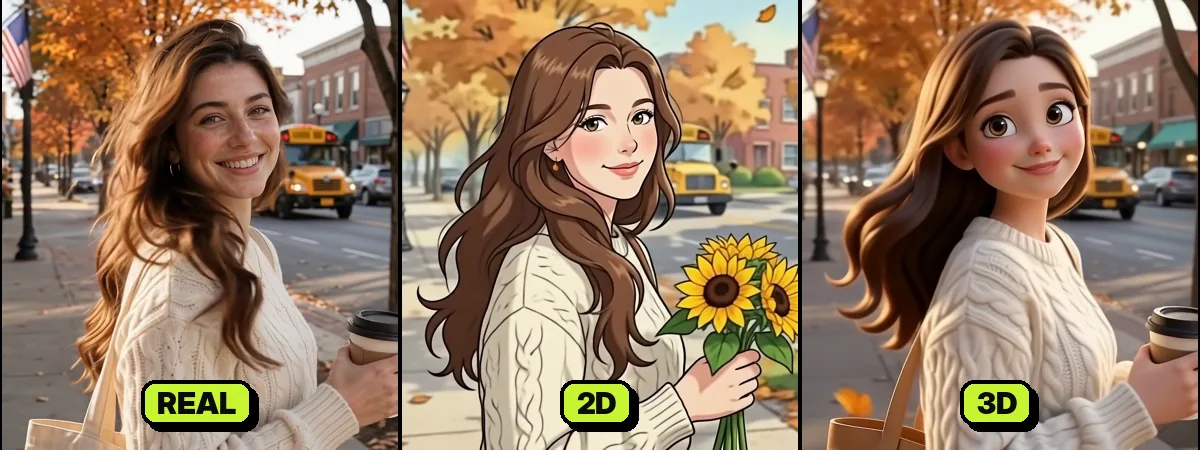
Two lessons from this step:
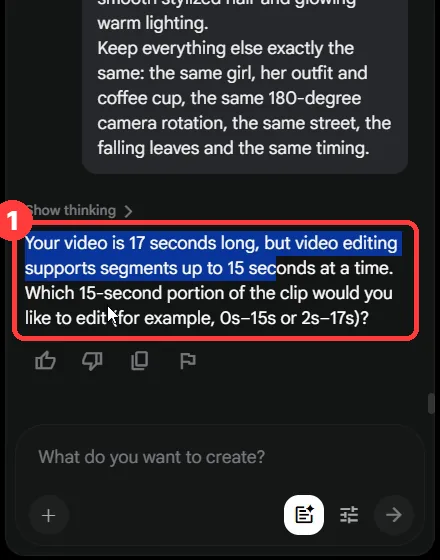
- Answer the length question to save credits. Because my clip’s history included a 17-second extended version, the agent asked which 15-second portion to edit and priced it at 60 credits. I replied “10 sec only” and the card dropped to 30 credits.
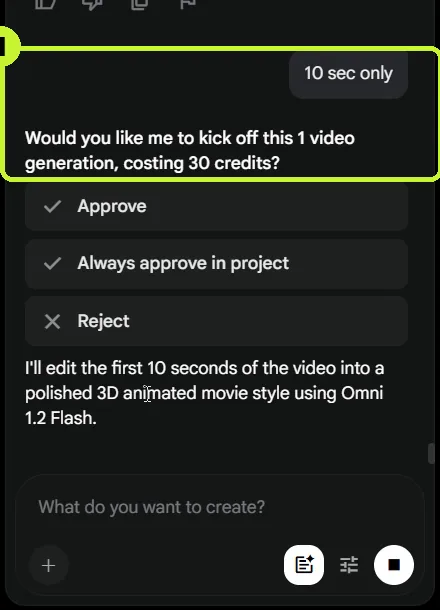
- Add to prompt uses the newest version. My 2D version came out with sunflowers instead of coffee, because the sunflower edit was the latest version of that clip. To restyle an older version, open the clip, choose that version in history and save it to the project first.
Step 10: A pencil sketch, and the edit that hides AI flaws
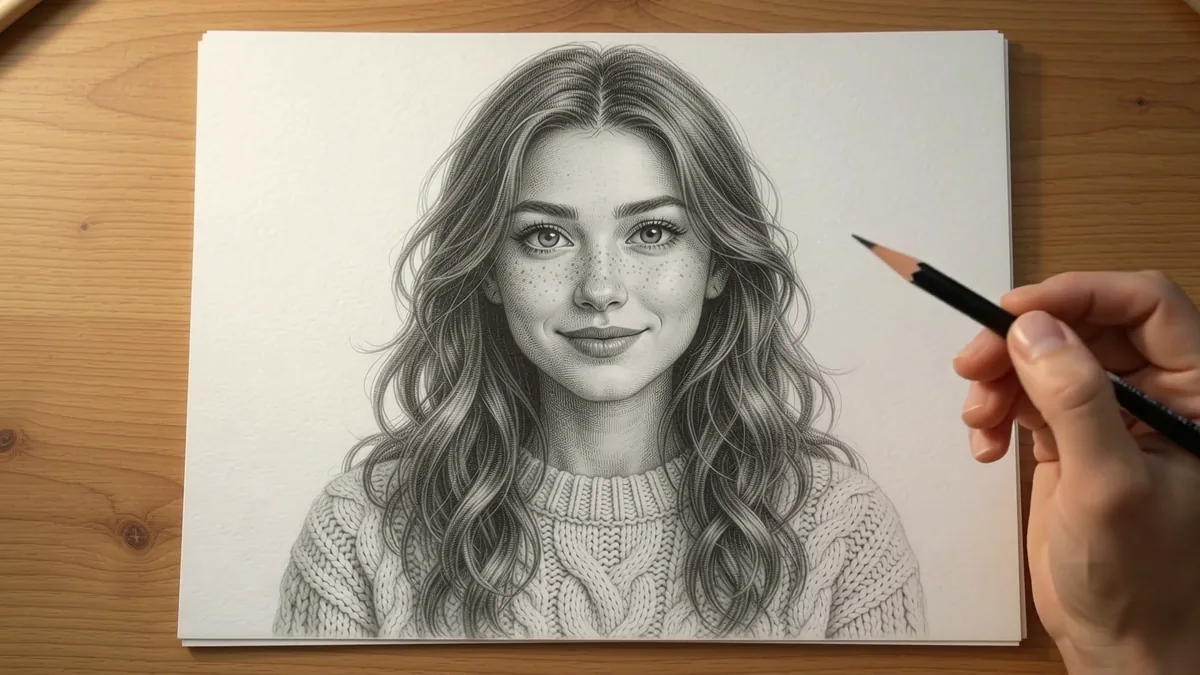
I asked Omni to draw Mia in pencil on a blank page. The shading, freckles and sweater texture looked real, and the hand lifted the pencil at the end. With Mia’s portrait attached as the face reference, this was the prompt:
Use the attached image only as the face reference for the drawing.
One 10-second video, 16:9, photo-realistic, a real pencil drawing time-lapse.

A blank sheet of white drawing paper lies on a wooden desk, lit by soft warm daylight from a window on the left. An artist's hand holds a graphite pencil.

0-2s: the paper is completely blank. The pencil touches down and draws the first light outline of a young woman's face and long wavy hair.
2-5s: the drawing grows quickly: her eyes, nose, smile and freckles appear in clean pencil lines, matching the woman in the reference image.
5-8s: the hand adds soft shading to her cheeks and hair, and the texture of her cable-knit sweater.
8-10s: the hand lifts the pencil away. The finished, detailed pencil portrait of her face and shoulders fills the paper, clearly the same woman as in the reference.

Camera: top-down view straight above the paper, locked off, the whole sheet in frame.
The hand has five fingers and holds the pencil naturally. Only pencil gray on white paper, no color.
SOUND: soft pencil scratching on paper, a quiet room. No music.
No text, no signature, no writing on the paper.
The flaw was in the first two seconds: lines appear on the paper before the pencil reaches them.
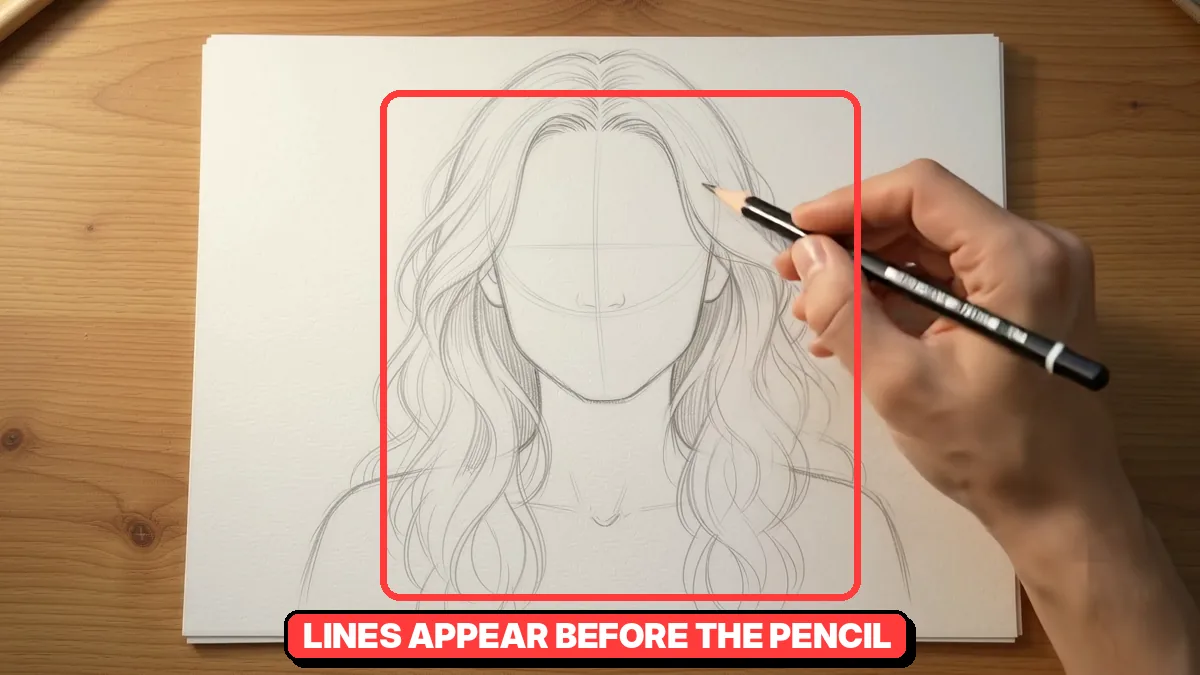
The fix happened in the edit, not the prompt: cut the first two seconds (or speed them up into a time-lapse) and add a pencil-scratch sound. Viewers then see only the convincing part.
Step 11: Credit math, the real prices I saw
Omni charges by the second. These are the numbers on my price cards (Google AI Pro account, 14 November 2026). Your plan and later updates may differ, so always read the card.
| Clip | Quality | Credits on the card |
|---|---|---|
| 3 seconds | default (720p) | 9 |
| 8 seconds | default (720p) | 24 |
| 10 seconds | default (720p) | 30 |
| 15 seconds | default (720p) | 60 |
| 15 seconds | “360p draft quality” in the prompt | 20 |
| Edit of a 10-second clip | default (720p) | 30 |
| Extend, 4 seconds / 6 seconds | default | 12 / 18 |
| 1080p download of a 15-second clip | upscale | 5 extra |

What the table means for your workflow:
- 10 seconds is the sweet spot. Up to 10 seconds you pay 3 credits a second; seconds 11 to 15 cost twice as much, and the 1080p download of the longer clip cost 5 credits, while it showed no price for shorter clips.
- Draft at 360p. Writing “at 360p draft quality” in the prompt brought the same 15-second shot down from 60 to 20 credits.
- Read the card text, not only the number. After a retry, my 360p card quietly changed the subject to my saved character (“featuring Mia”) instead of the sailboat I asked for. I rejected it and resent the prompt in a new chat.

The 15-second test prompt (add “at 360p draft quality” after “15-second video” for the draft):
One 15-second video, 16:9, photo-realistic, one continuous shot with no cuts.
A small wooden sailboat with a white sail glides across a calm mountain lake at sunrise.

0-5s: the boat drifts slowly from the left side of the frame; mist floats over the water.
5-10s: a light breeze fills the sail, the boat speeds up a little and leaves a soft V-shaped wake.
10-15s: the sun rises above the mountain peaks behind it and the whole lake turns gold.

Camera: wide shot from the shore, slow pan to the right following the boat.
Light: soft pink and gold sunrise, mist glowing.
SOUND: gentle water lapping, a soft breeze, the sail flapping, birds far away. No music.
No text, no logos.
Step 12: Extend (do it last)
- Open a clip and click the + at the end of the timeline. Choose Extend (the other option is Add clip).
- A grey Extend block appears on the timeline. Pick the length; the cost appears with it (3 credits a second on my account).
- Describe what happens next and send it. My 10-second clip became one 17-second clip.

Two catches I hit:
- After the clip is longer than 15 seconds, you can’t edit it. Flow showed “Videos longer than 15s can’t be edited. Trim to 15s or under to edit.” with a Trim automatically button.
- No 1080p. The extended clip’s download menu offered only 270p GIF and 720p.
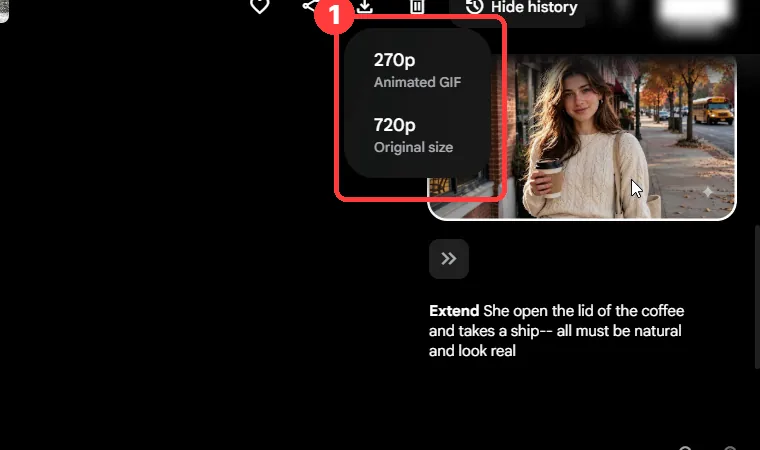
So the order is: edit first, download the 1080p version of the 10-second clip from history, and extend last.
My extension prompt was short (“she opens the lid of the coffee and takes a sip”), and the lid was back on the cup at the end. Omni doesn’t track where objects end up unless you say so.

A clearer version states the end state as well. It worked in my retest; like any AI result, it usually works but isn’t guaranteed every time:
The scene continues: she removes the lid from the coffee cup, holds the lid in her left hand, and takes a slow sip from the open cup.
The lid stays in her left hand until the end; the cup stays open. Natural, real motion.
Step 13: Add clip turns clips into a scene
The same + at the end of the timeline has Add clip. It opens a scene: your clips sit on one timeline, you can select each one, trim its edges and download the whole thing as one file.

Two limits from my test: a prompt in the scene changes only the selected clip, not the whole scene (my “merge both clips smoothly” request re-made just one clip and added no transition), and the scene download was 720p only. For a 1080p final, upscale each clip and join them in your editor.
Omni Flash 1.2 mistakes that cost credits, and the fixes
| Problem | Why it happens | Fix |
|---|---|---|
| Every prompt makes 2 videos | Video default is x2 | Agent settings → x1 → Save; check again each session |
| “This generation might violate our policies” on a harmless prompt | False alarm; Flow doesn’t say what triggered it | Send it again, or rewrite it in plain words in a new chat; a block costs nothing |
| Old character shows up in an unrelated prompt | Character instruction cards or an old chat still active | Switch off the cards and open a new chat |
| “I’ve cancelled that video generation” with no reason | Unknown | Click Try again |
| Agent changed the subject after a retry | Character instructions or an old chat leaking in | Read the card text; Reject and resend in a new chat |
| Text appears on signs | Omni likes writing on signs | Write exactly what it should say, or remove the sign |
| Wrong count of small objects | Counting is weak | “Exactly three”, “nothing else appears” |
| Original clip seems gone after an edit | Edits stack on the same clip | Open the clip → history panel |
| 9:16 by edit fails | Didn’t work in my tests | Generate in 9:16 from the start |
| 15-second clip costs double, 1080p costs extra | Seconds 11–15 bill at double rate | Keep clips at 10 s; draft at 360p |
| Extended clip can’t be edited or upscaled | Longer than 15 s | Edit and download first, extend last |
| Object returns to its old state in an extension | No end state in the prompt | Describe where things end |
If a false alarm keeps appearing on a prompt you know is harmless, use Send feedback under the message so Google can review it. Every prompt should still follow Google’s Generative AI Prohibited Use Policy.
For more fixes and a model-by-model look at credits, see my Omni 1.2 review with 12 tests.
My workflow to scale it
- Check x1 and Confirm = Always before you start.
- Save your characters in Agent instructions with a reference image.
- Draft at 360p, then make the final at default quality.
- Keep clips at 10 seconds.
- Read every price card before you approve.
- False alarm? Retry, or open a new chat. A block costs nothing.
- Edit one change at a time.
- Download 1080p from history.
- Extend last.
FAQ
Yes. Google’s official name is Gemini Omni 1.2 Flash. In Flow’s Agent settings it appears as Omni 1.2 Flash, and most people search for it as Omni Flash 1.2.
I tested on a paid Google AI Pro account, so I can’t confirm what a free account gets. Check the credits shown in your own Flow account; <a href=”https://support.google.com/flow/answer/16935718?hl=en” target=”_blank” rel=”noreferrer noopener”>Google’s Flow help page</a> lists Extend as a paid-plan feature.
Google’s announcement says up to 15 seconds natively. In my tests, seconds 11 to 15 cost double, so 10-second clips were the best value.
The filter sometimes flags harmless prompts, and Flow doesn’t say why. A blocked prompt is stopped before the price card, so no credits are spent. Send it again, rewrite it in plain words in a new chat, or use Send feedback if it’s a false alarm.
No. Every version stays in the clip’s history panel, as Google’s help page also states.
Your video generation default is set to x2, so every prompt makes two clips. A 10-second clip costs 30 credits, so two cost 60. Open Agent settings (sliders icon), set it to x1 and click Save, then check it again in new sessions.
Omni edits clips of up to 15 seconds. If you extended a clip past 15 seconds, click Trim automatically (or trim it yourself) to 15 seconds or less. Better: finish your edits first and extend last.
Yes, but set the video default to 9:16 before generating. Changing an existing 16:9 clip to 9:16 by edit failed for me twice.
Next step
All the prompts above are free to copy. If you’re comparing models before you commit credits, see my Omni 1.2 review with 12 tests, and for building a reusable character from scratch, read the guide to making a consistent AI character for free.

Awill Misra (Known as Awill Guru) holds a B.Tech in Electronics & Communication Engineering and an M.Tech in VLSI design, along with NIELIT O and A Level certifications. He also has an M.A. in Sociology and a B.Ed. He has been writing troubleshooting guides for Android phones, TVs, apps and gadgets on Gossipfunda since 2018, and teaches mathematics.