

Quick answer: After December 5, 2026, Google Flow keeps two main video models: Veo 3.1 Lite and Omni Flash 1.2. In my 6-round Veo 3.1 Lite vs Omni Flash 1.2 test, Omni Flash 1.2 won on quality 4 to 2, but Veo 3.1 Lite gave me about twice as many usable clips for the same credits (about 12.5 vs. 26 credits per usable clip).
Use Veo 3.1 Lite for talking heads, food and product shots, animals and simple scenes. Use Omni Flash 1.2 for action, camera moves and anything longer than 8 seconds.
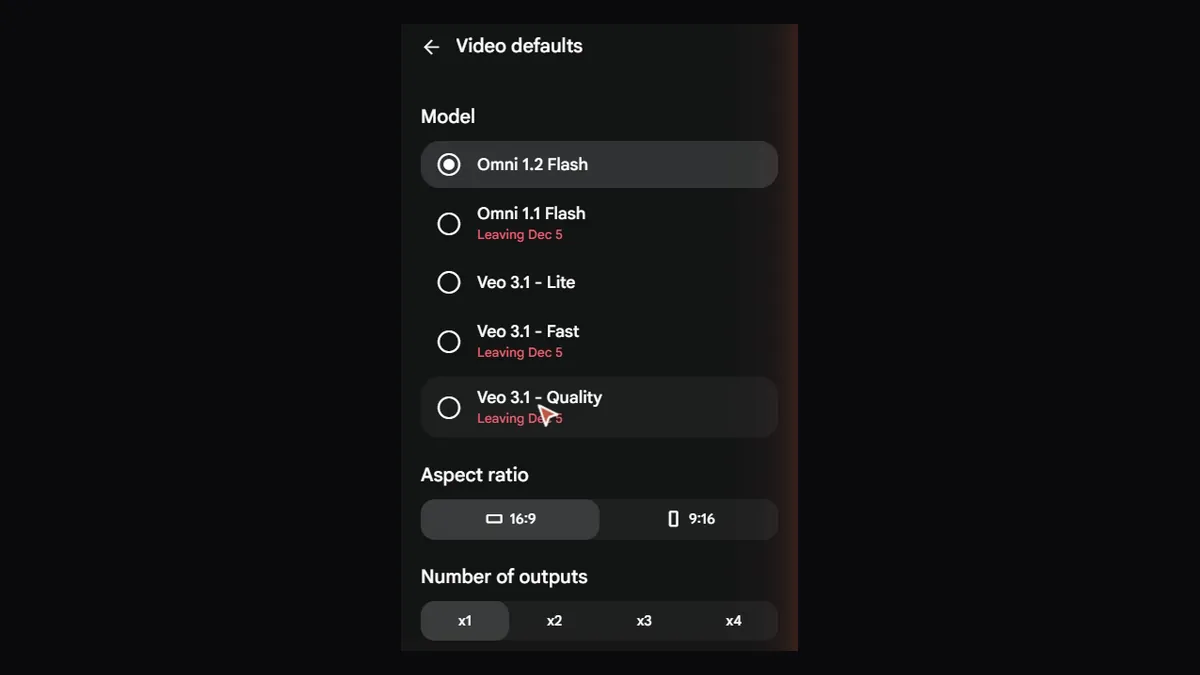
Google is retiring three video models in Flow on December 5, 2026: Veo 3.1 Fast, Veo 3.1 Quality and Omni Flash 1.1. Google’s Flow models and features page recommends switching to Omni Flash 1.2 or Veo 3.1 Lite. So I ran both models on the same six prompts, two tries each, and counted what I could actually use.
Veo 3.1 Lite vs Omni Flash 1.2: my scoreboard
Every round used the same prompt, the same 8-second length and two tries per model. I compared the clips side by side, and in two rounds I first did a blind test to see if I could tell which model was which. A tie gives each model half a point.
| Round | What it tests | Veo 3.1 Lite | Omni Flash 1.2 | Winner |
|---|---|---|---|---|
| 1. Barista | Lip-sync and realism | 0 | 1 | Omni |
| 2. Car drift | Fast action | 0 | 1 | Omni |
| 3. My avatar | Same face from one image | ½ | ½ | Tie |
| 4. Honey | Liquid physics | ½ | ½ | Tie |
| 5. Bridge | 180° camera orbit | 0 | 1 | Omni |
| 6. Snow leopard | Animal close-up | 1 | 0 | Lite |
| Total | 2 | 4 | Omni |
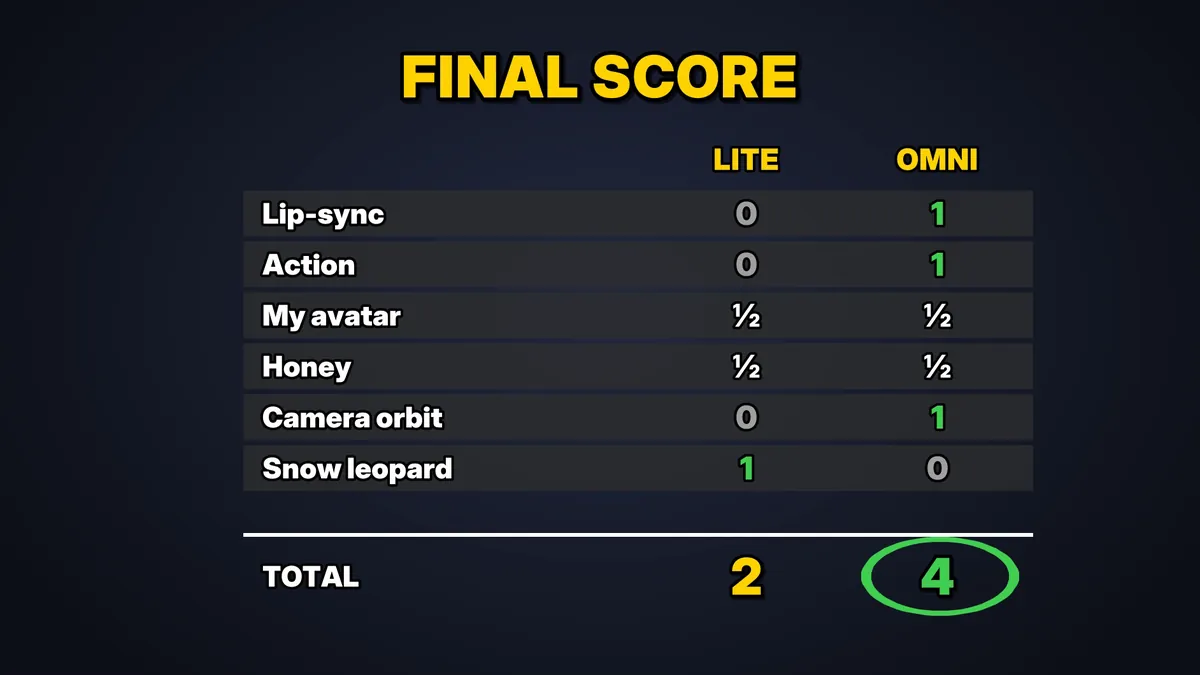
Quality is only half of the answer, though. The other half is what each usable clip costs you, and that is where Veo 3.1 Lite comes back.
Cost per usable clip: Lite gives you about 2x more
In Flow’s agent panel, every request shows a confirmation card with the price before anything is generated. In my test, two Veo 3.1 Lite videos cost 20 credits and two Omni Flash 1.2 videos cost 48 credits. That is 10 vs. 24 credits per 8-second clip.
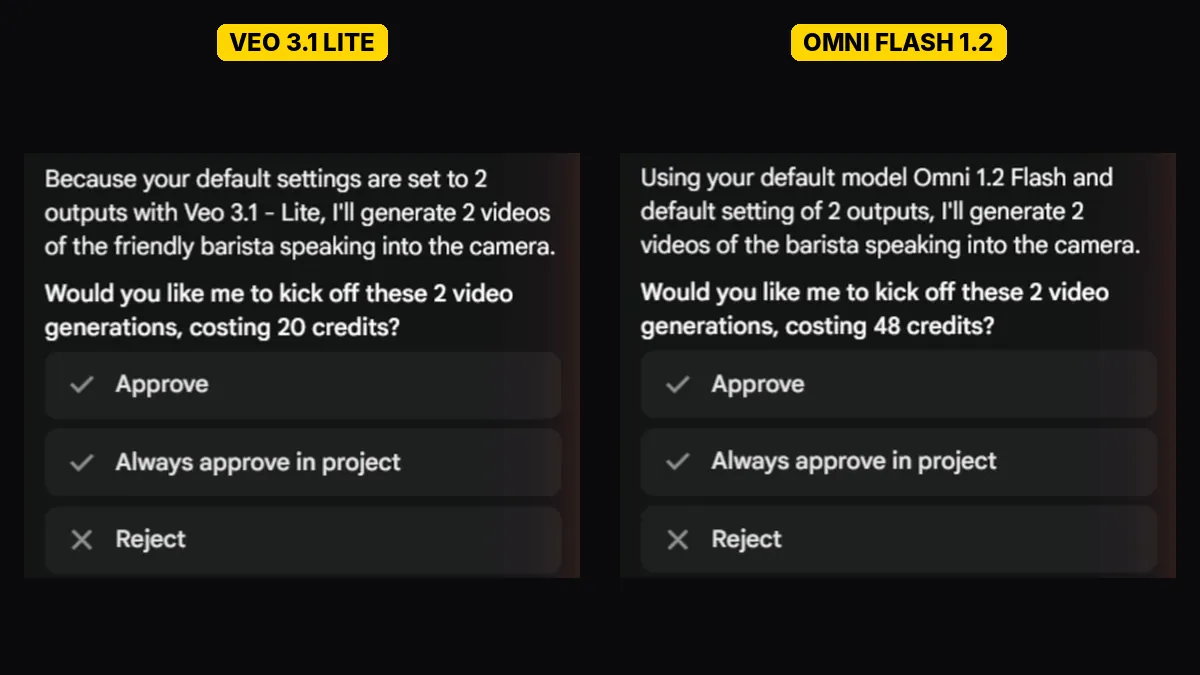
Those numbers match Google’s Flow credits page: Veo 3.1 Lite costs 10 credits per video for users without Ultra (5 credits with Google AI Ultra), and Omni Flash 1.2 at 720p costs 3 credits per second, so an 8-second clip is 24 credits. Here is what I actually spent and got back:
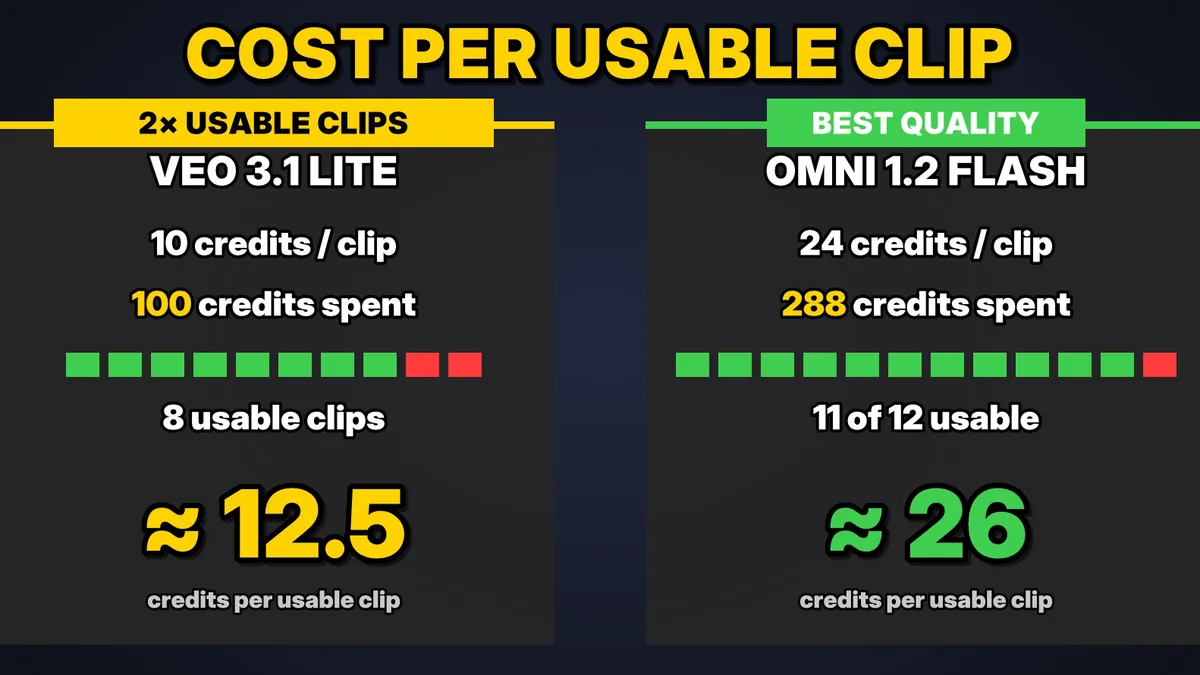
- Veo 3.1 Lite: 100 credits spent, 8 clips I would actually use. That is about 12.5 credits per usable clip.
- Omni Flash 1.2: 288 credits spent, 11 of 12 clips usable. That is about 26 credits per usable clip.
Lite failed twice in my test, and Flow refunded both of those generations, so the failures did not cost credits. They cost time. Even with the failures, Lite gave me about twice the usable clips for the same credits.
Round 1: Which model does better lip-sync?
The first round was a single line of dialogue spoken to the camera. This is the prompt I used for both models:
A friendly woman barista in a cozy cafe looks into the camera and says: "Your coffee is ready, and today it's on the house." Natural lip-sync, warm morning light, medium close-up, 8 seconds.Both models said the line word for word, and the lips matched the audio. The difference was realism. When I looked closer, Lite’s barista looked like AI, while Omni’s barista looked like a real person. Point to Omni Flash 1.2.
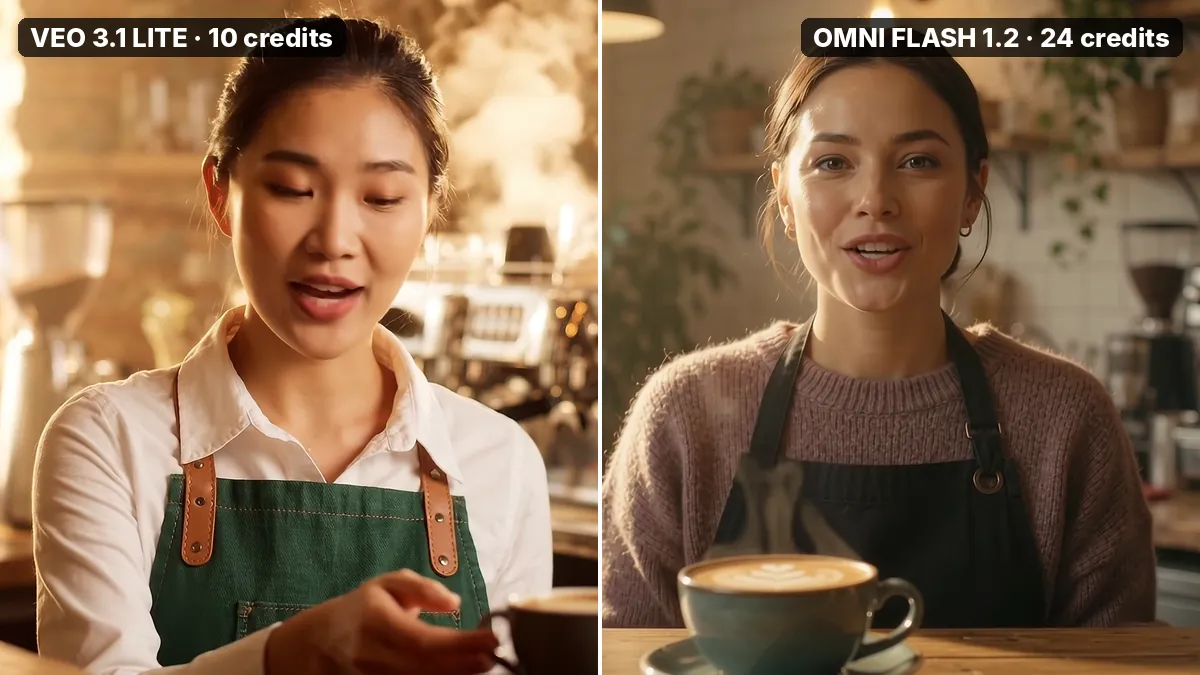
If you mainly make talking-head clips, see my AI avatar video without showing your face guide for the full setup.
Round 2: Which model handles fast action?
A red sports car drifts around a wet street corner at night, spraying water toward the camera, low tracking shot beside the car, 8 seconds.Omni Flash 1.2 gave me a real sideways drift, and the water sprayed right at the camera. Veo 3.1 Lite drifted too, but the clip was softer and half of the frame was smoke.
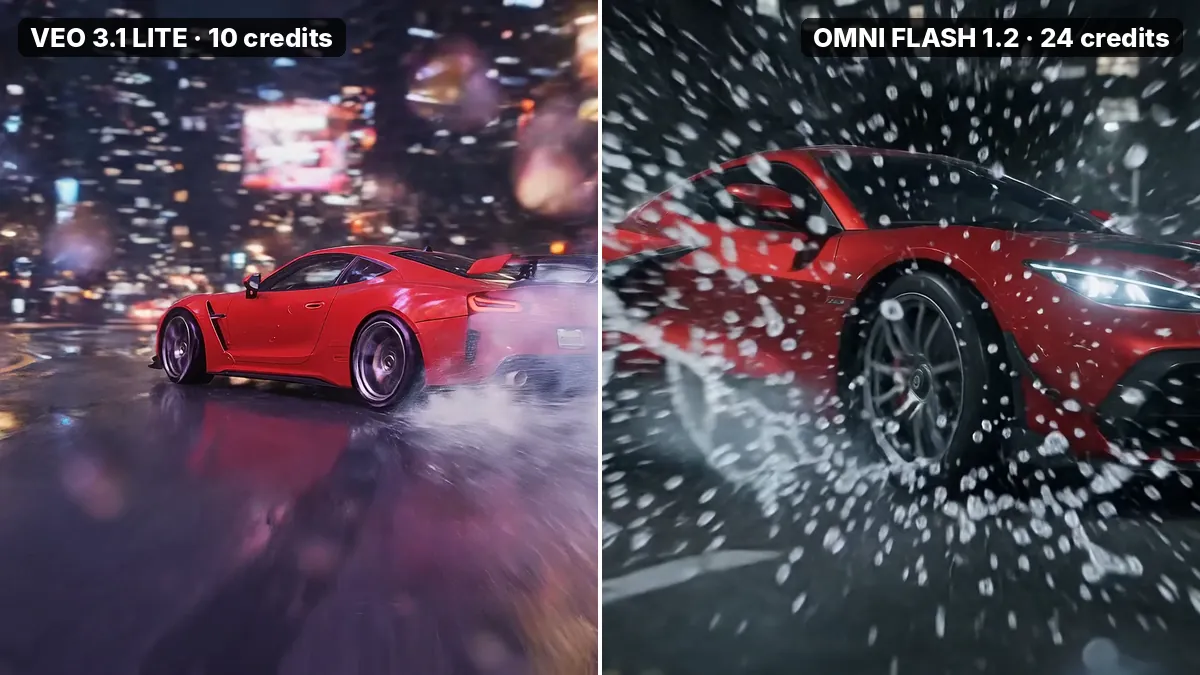
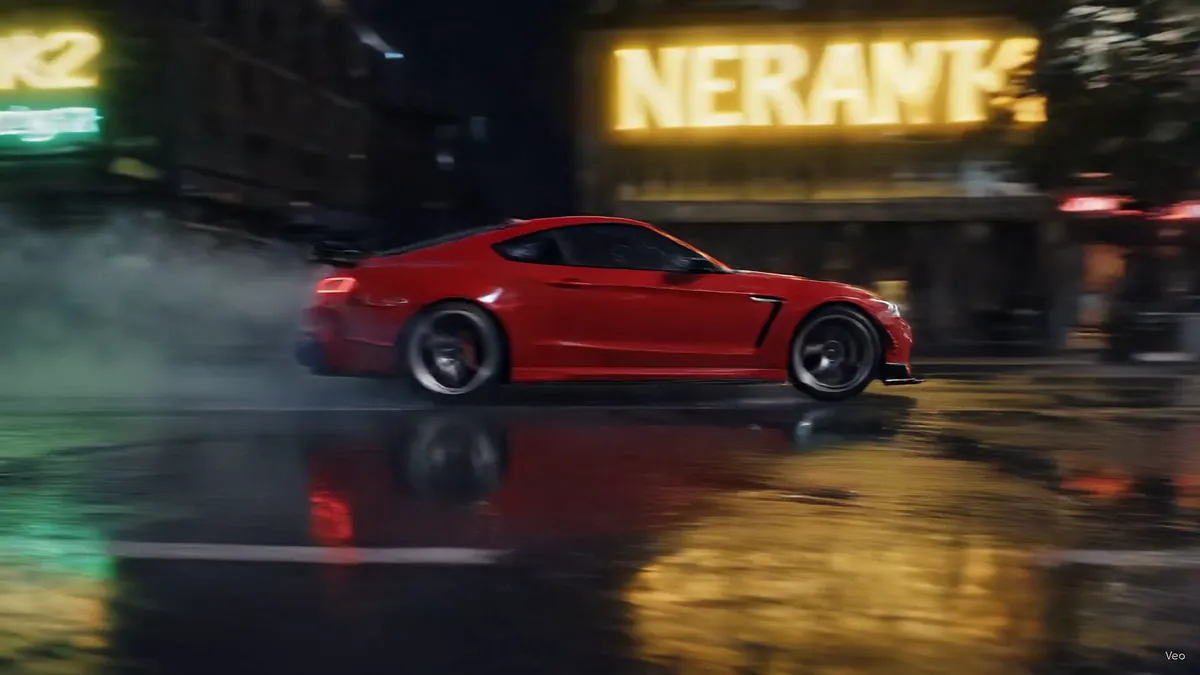
In Lite’s other try, a neon street sign turned into nonsense letters. Text inside a scene is still a weak spot, so check signs and labels before you use a clip. Point to Omni Flash 1.2.
Round 3: Can both models keep the same face from one image?
For this round I used one image of my own AI avatar as the first frame. Both models got the same instruction, shown in the box below.
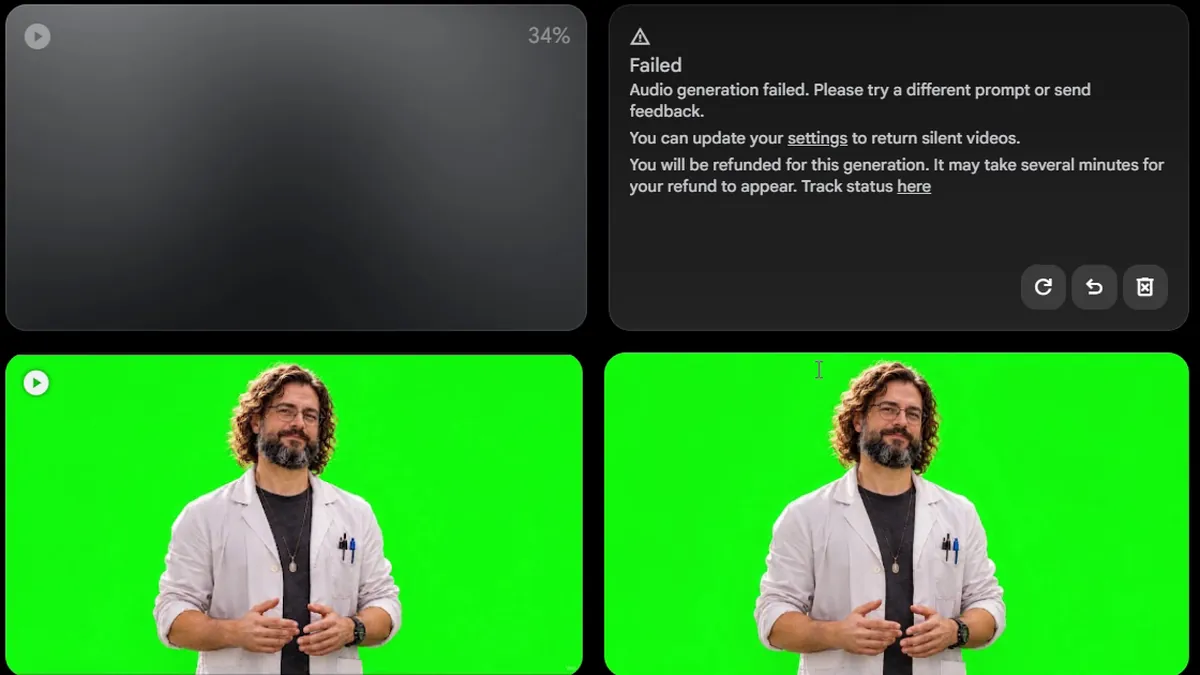
Use this image as the first frame. He smiles, nods, then raises his right hand and waves at the camera. Keep his face, hair, glasses, coat and the green background exactly the same. Static camera, 8 seconds.Both models kept my face, my glasses and my coat, and both waved with the correct hand. Omni Flash 1.2 dropped my watch in one of its clips.
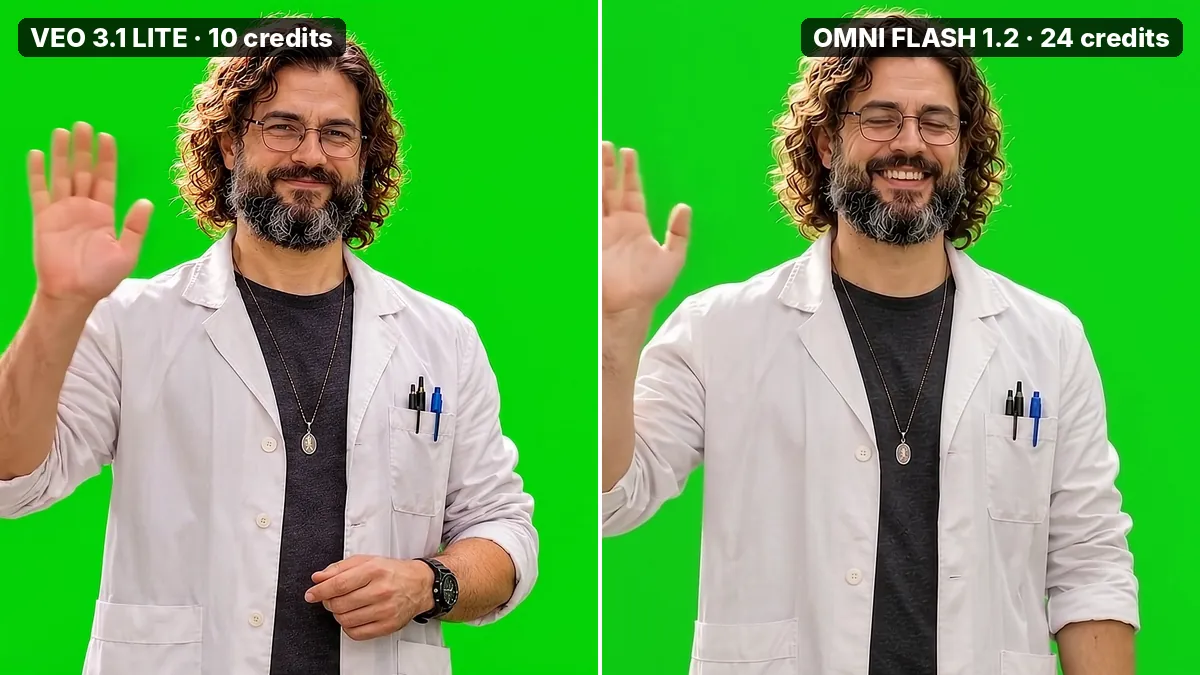
Lite failed one of its two tries with an “Audio generation failed” message. Flow says you will be refunded, and the message also says you can change your settings to return silent videos. I called this round a tie. If you want to build an avatar like this first, my guide to consistent AI characters for free shows how.
Round 4: Which model renders liquid better?
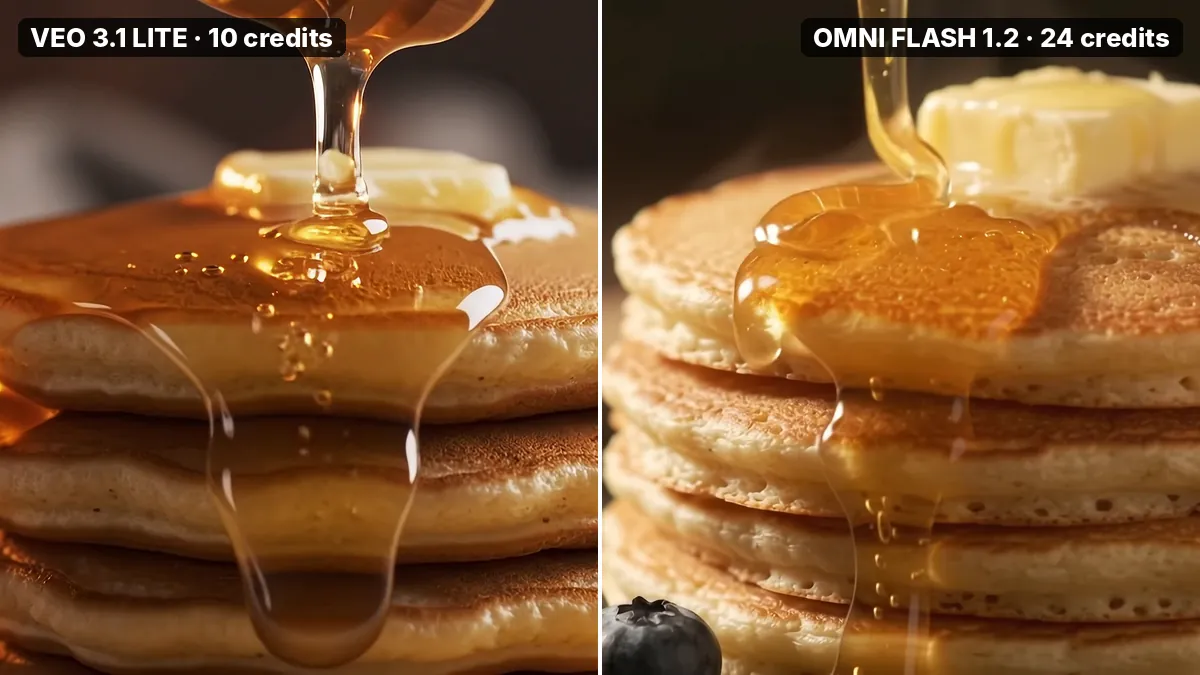
Slow motion macro: thick golden honey pours from a wooden dipper onto a stack of pancakes, warm side light, 8 seconds.Both models poured honey that looked and moved like the real thing. Neither followed the prompt exactly, though. Omni Flash 1.2 added butter and blueberries I never asked for, and Veo 3.1 Lite added butter too. Tie again.
Round 5: Which model can do a 180-degree camera orbit?
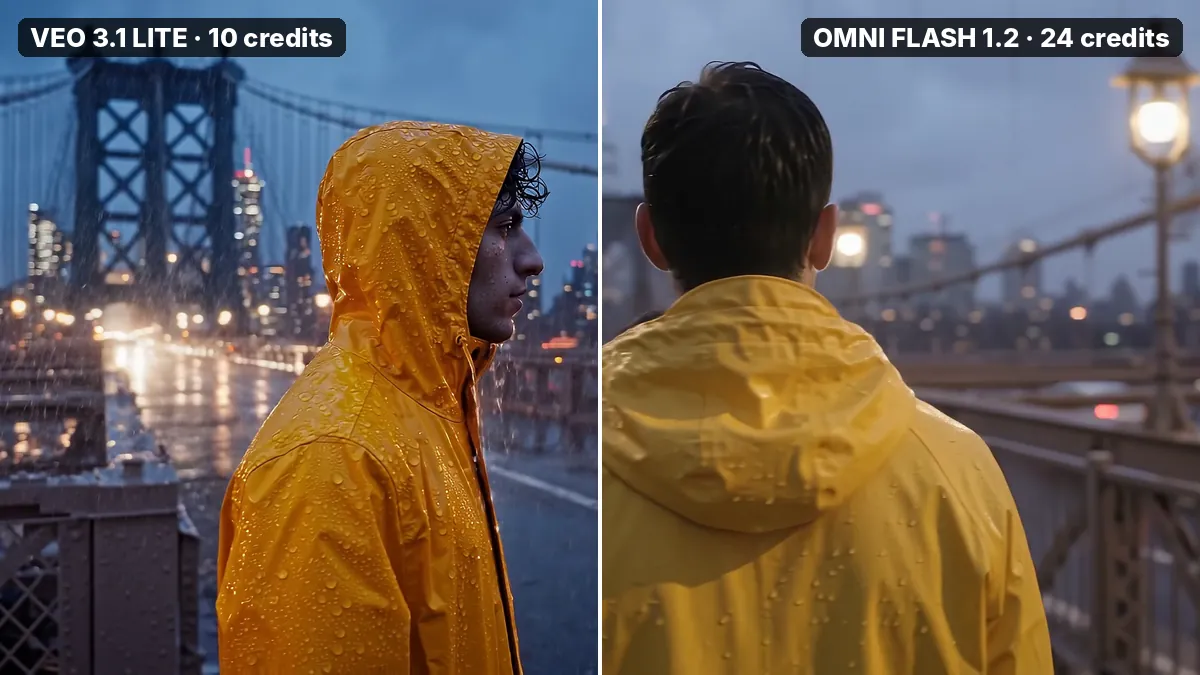
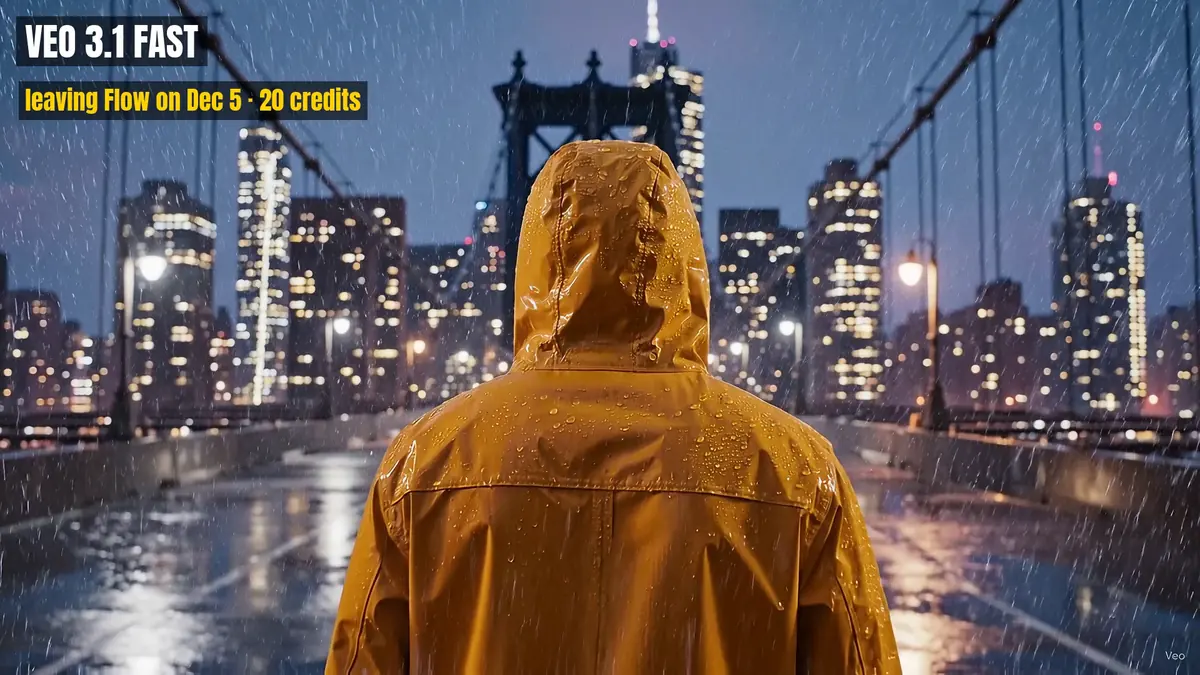
The camera slowly orbits 180 degrees around a young man in a yellow raincoat standing still on a rainy city bridge at dusk. His face and coat stay the same the whole time. 8 seconds.This was the clearest win of the test. Veo 3.1 Lite barely moved the camera. Omni Flash 1.2 went almost all the way around the man. Point to Omni Flash 1.2.
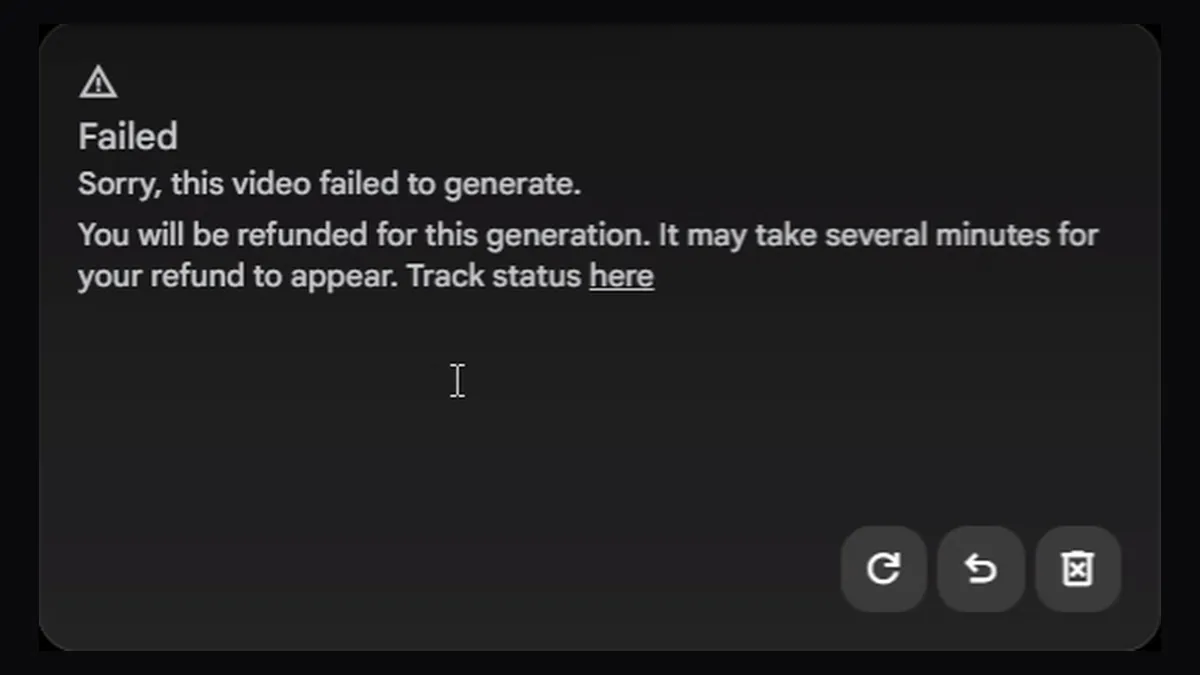
Lite’s second orbit try failed completely with “Sorry, this video failed to generate.” Again, Flow said the credits would be refunded and that the refund may take several minutes to appear.
For reference, I also ran the same prompt on Veo 3.1 Fast, one of the models leaving on December 5. It cost 20 credits and made the cleanest orbit of all three models. That is what you lose after the switch.
Round 6: Which model is better for animal close-ups?
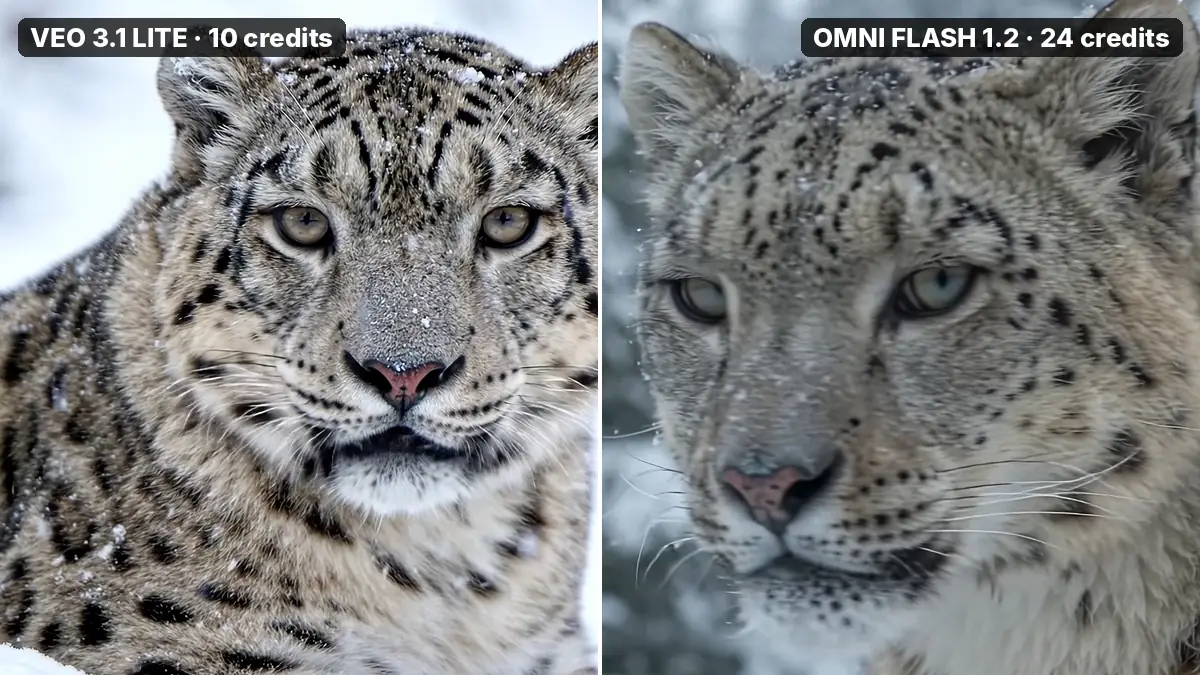
Close-up of a snow leopard slowly turning its head toward the camera and blinking, snow falling, sharp fur detail, 8 seconds.This is where the cheap model won. Side by side, Lite’s fur was sharper and the blink was clear. Omni’s leopard looked softer. Point to Veo 3.1 Lite.
Which one should you use after December 5?
Here is the simple rule I follow after this test:
| Use Veo 3.1 Lite for | Use Omni Flash 1.2 for |
|---|---|
| Talking heads | Action scenes |
| Food and product shots | Camera moves like orbits |
| Animals | Clips longer than 8 seconds |
| Simple shots where cost matters | Shots where realism matters most |
The length limit is the deciding point for many projects. In Flow, Veo 3.1 Lite makes 4, 6 or 8-second videos at 720p only. Omni Flash 1.2 makes 3 to 10-second videos for everyone, and 3 to 15 seconds with Google AI Plus, Pro or Ultra, according to Google’s Flow models and features page. If a shot needs more than 8 seconds in one take, Lite is not an option.
Google’s own launch posts say the same thing about the two models. The Gemini Omni 1.2 Flash announcement highlights longer clips, better lip-sync and more controllable camera moves. The Veo 3.1 Lite announcement calls it Google’s most cost-effective video generation model.
How to switch the video model in Google Flow
If your project still defaults to Veo 3.1 Fast or Quality, change it before December 5. This is how I did it in the Flow agent panel:
- Open your project in Google Flow.
- In the agent panel on the right, tap the gear icon to open Agent settings.
- Under Defaults, open Video defaults.
- Under Model, pick Omni 1.2 Flash or Veo 3.1 – Lite. You can also set the aspect ratio (16:9 or 9:16) and the number of outputs here.
- Go back and keep working. Every new clip after that uses the model you picked.
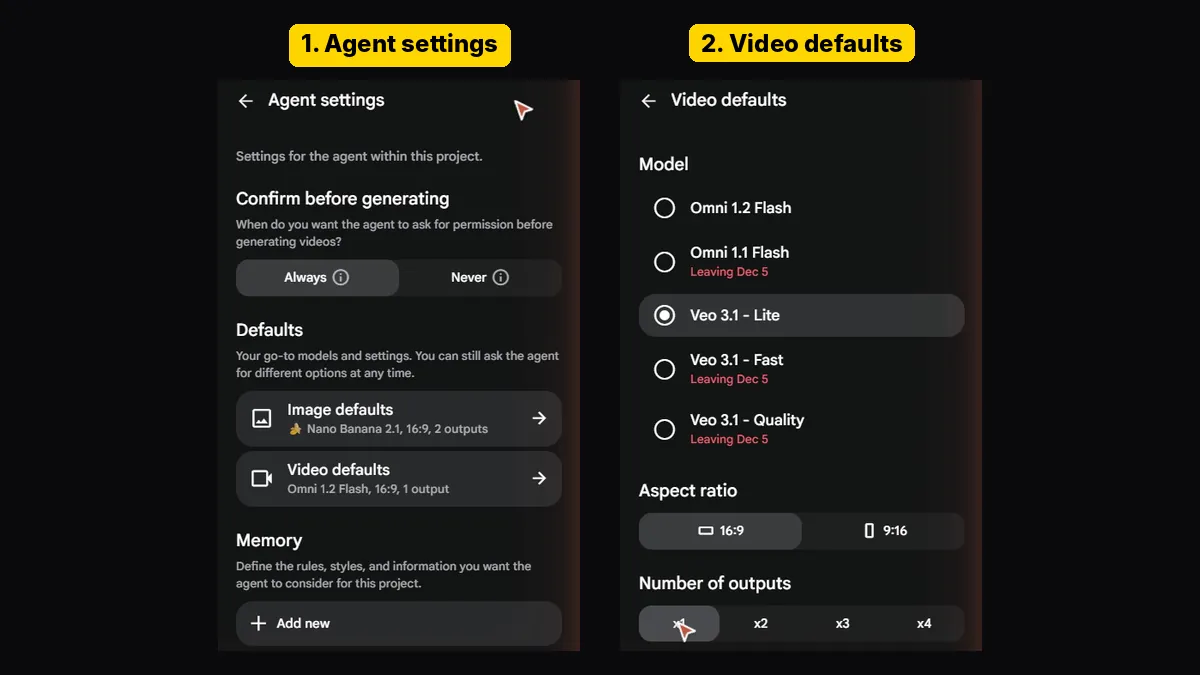
In the same Agent settings screen, Confirm before generating controls whether the agent asks you before it spends credits. I kept it on Always, which is why every request showed the price card first. For the full Omni workflow, see my Omni Flash 1.2 tutorial.
Common mistakes when choosing between Lite and Omni
- Leaving a retiring model as your default. Veo 3.1 Fast, Veo 3.1 Quality and Omni Flash 1.1 are marked “Leaving Dec 5” in the model list. Switch your Video defaults before December 5.
- Comparing price per clip instead of price per usable clip. Lite is 10 credits and Omni is 24 credits per 8-second clip, but what matters is how many clips you keep. In my test that was about 12.5 vs. 26 credits.
- Asking Lite for long shots. Lite stops at 8 seconds. Use Omni Flash 1.2 for anything longer.
- Expecting Lite to follow camera moves. In my orbit test, Lite barely moved and one try failed. Use Omni for orbits and tracking shots.
- Not checking text in the scene. Lite turned a street sign into nonsense letters in one try. Look at signs and labels before you publish.
- Panicking over a failed clip. Both of my failures showed a refund notice. For “Audio generation failed,” the card itself says you can update your settings to return silent videos.
Veo 3.1 Lite and Omni Flash 1.2 cost and limits
These figures come from Google’s Flow credits page and models page, checked on November 28, 2026. Google says limits can change at any time, so always check the price on the confirmation card before you approve.
| Model | Length in Flow | Resolution | Credits |
|---|---|---|---|
| Veo 3.1 Lite | 4, 6 or 8 s | 720p | 10 per video (5 with Ultra) |
| Omni Flash 1.2 | 3–10 s (3–15 s with Plus, Pro or Ultra) | 360p or 720p | 1 per second at 360p, 3 per second at 720p (up to 10 s) |
| Veo 3.1 Fast (leaving Dec 5) | 4, 6 or 8 s | – | 20 per video (10 with Ultra) |
| Veo 3.1 Quality (leaving Dec 5) | 8 s | – | 100 per video |
For Omni Flash 1.2 clips from 11 to 15 seconds, each extra second costs 2 credits at 360p or 6 credits at 720p. The same page says every user gets 50 credits per day, which do not roll over. Google also notes that Veo Extend was retired on November 5, 2026, so extending a video now needs Omni Flash 1.2 and a Google AI Plus, Pro or Ultra plan.
Veo 3.1 Lite vs Omni Flash 1.2: FAQ
Yes. Google’s Flow help page says Veo 3.1 Fast, Veo 3.1 Quality and Omni Flash 1.1 will be retired on December 5, 2026. You can use them until then, but Google recommends switching to Omni Flash 1.2 or Veo 3.1 Lite.
In my 6-round test, Omni Flash 1.2 won on quality 4 to 2. It was better at lip-sync realism, action and camera moves. Veo 3.1 Lite won the snow leopard close-up and gave about twice as many usable clips for the same credits.
Veo 3.1 Lite costs 10 credits per 4, 6 or 8-second video for users without Google AI Ultra, and 5 credits with Ultra. In my test, two Lite videos cost 20 credits.
Omni Flash 1.2 costs 3 credits per second at 720p and 1 credit per second at 360p for clips up to 10 seconds. An 8-second 720p clip is 24 credits, which matches the 48 credits Flow asked for two clips in my test.
In Google Flow, Veo 3.1 Lite makes 4, 6 or 8-second videos at 720p. For longer shots use Omni Flash 1.2, which goes up to 10 seconds for everyone and up to 15 seconds with Google AI Plus, Pro or Ultra.
In my test, both failed Veo 3.1 Lite generations showed a notice saying I would be refunded for the generation and that the refund may take several minutes to appear.
In the agent panel, tap the gear icon to open Agent settings, open Video defaults, and pick Omni 1.2 Flash or Veo 3.1 – Lite under Model. Every new clip after that uses the model you picked.
Conclusion
After December 5, the choice in Google Flow is Veo 3.1 Lite or Omni Flash 1.2. In my test, Omni Flash 1.2 made the better clips, winning 4 to 2, especially for action and camera moves. Veo 3.1 Lite was cheaper per usable clip by about half and even won the animal close-up. My rule: start with Lite for simple shots, and pay for Omni when the shot moves, needs to look real, or runs longer than 8 seconds.
All clips in this test were generated in Google Flow, and the presenter in my video is an AI avatar with an AI voice made in Google AI Studio text to speech. This is an independent test, not sponsored by Google. For more Omni results, read my Gemini Omni 1.2 Flash review.

Awill Misra (Known as Awill Guru) holds a B.Tech in Electronics & Communication Engineering and an M.Tech in VLSI design, along with NIELIT O and A Level certifications. He also has an M.A. in Sociology and a B.Ed. He has been writing troubleshooting guides for Android phones, TVs, apps and gadgets on Gossipfunda since 2018, and teaches mathematics.